LinkedIn QR Code
Your profile. Your first impression.
LinkedIn QR Code
Made from your picture, not pasted on top
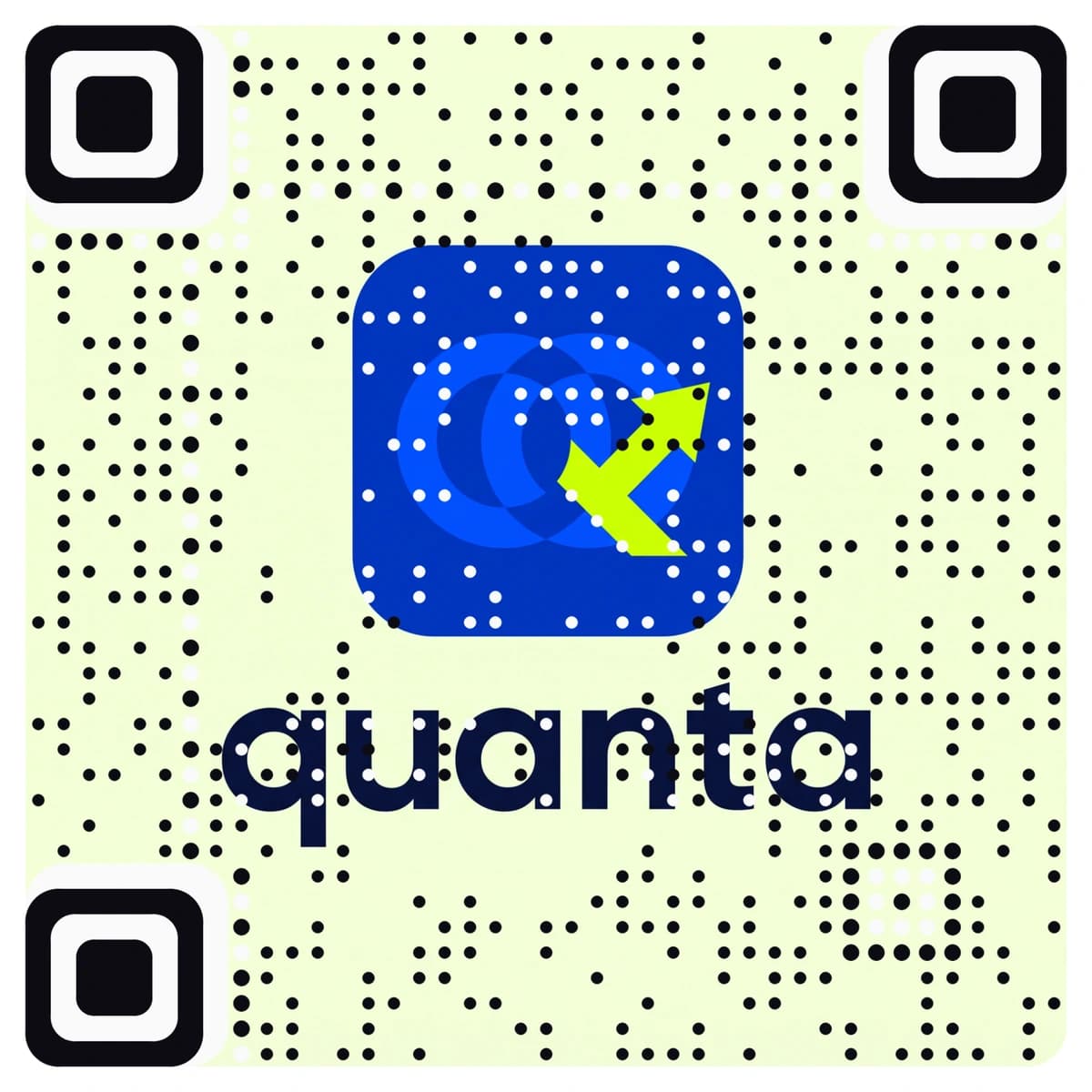
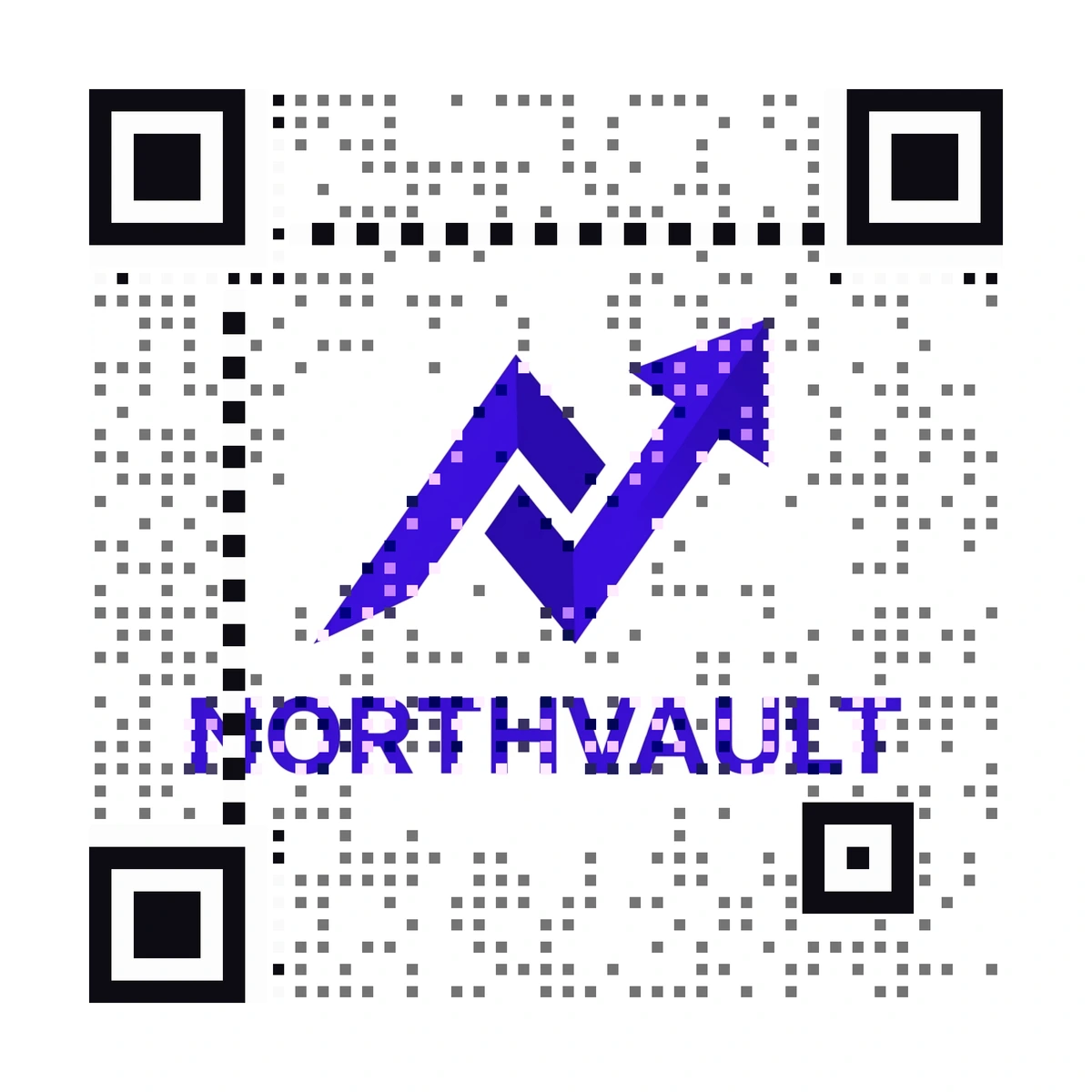
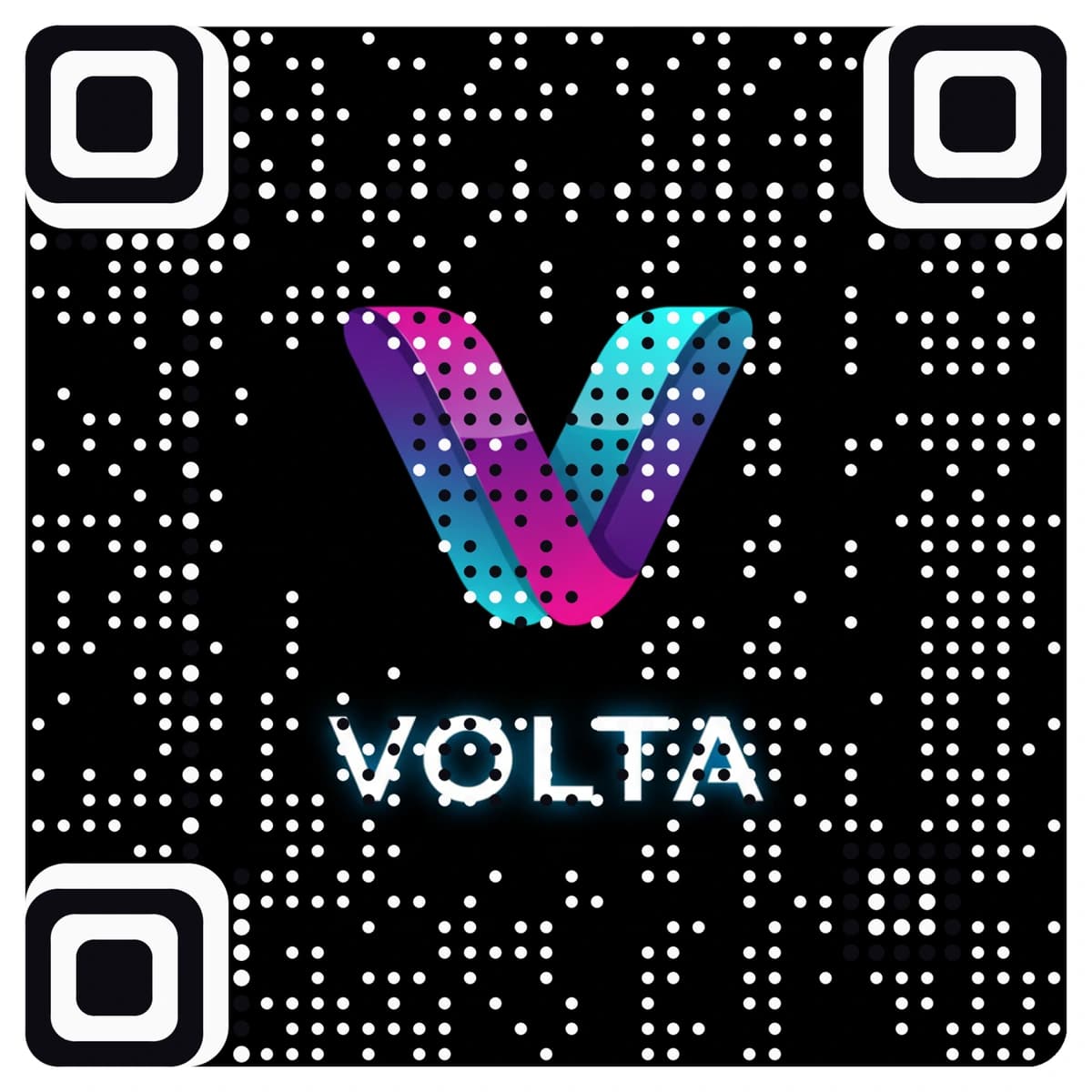
A LinkedIn QR code lets someone you have just met open your profile with one scan, with no typing and no spelling your surname twice. AriaQR builds the code from your logo or a clear photo, so a business card or booth sign looks designed rather than stamped, and every code is tested on real decoders under real-world conditions before you download it.
Where it goes
Where people use a LinkedIn QR code
Business cards
A code on the back of the card, made from your firm’s mark. Clients who keep the card can reach your profile without typing a thing.
Conference badges and booth signs
A code on a lanyard card or on the banner behind the stand. People walking past scan it while you are talking to someone else.
Résumés and portfolios
A small code in the corner of a printed résumé or a portfolio sheet, so a recruiter at a careers fair can open your full profile.
Email signatures
Paste the downloaded image into your signature. It gives people reading on a laptop a quick way to open your profile on their phone.
How it works
How to make a LinkedIn QR code with your logo
- 1
Upload your logo or a picture
Your company mark, a personal monogram or a clear, well-lit photo. PNG, JPEG or WebP.
- 2
Choose LinkedIn and paste your profile link
Copy your profile address from LinkedIn, such as linkedin.com/in/alexmorgan, or the link to your company page.
- 3
Check the verdict, then scan it
Every code is tested before you see it. Scan it with your phone: it should open the profile you meant.
- 4
Download and print
Download the full-size file. The standard setting suits 4 cm and up; choose small print for business cards, down to about 1.5 cm.
Every code is tested on real decoders under real-world conditions before you download it. How we verify codes
Design tips
Getting the design right
Check the link before you print
Scan the finished code and read the profile it opens. A typo in the address is easy to miss and costly after 500 cards.
Keep the card readable
Leave a clear margin around the code and do not put it on a fold or over a textured finish. A 2 to 3 cm code is easy to scan on a card.
Add a reason
Write “Connect on LinkedIn” beside the code. On a booth sign, make the code at least 10 cm so it can be scanned from a step back.
Questions
LinkedIn QR code questions
How do I make a QR code for my LinkedIn profile?
Copy your profile link from LinkedIn, upload a logo or photo, and choose LinkedIn in the generator. You get a print-ready code that opens your profile.
Can I make a custom LinkedIn QR code with my logo?
Yes. The whole logo or picture becomes the code, not a small logo dropped on a black-and-white square. It is tested before you download it, so it still scans.
Can I change the link after my business cards are printed?
Yes. The code is dynamic, so you can point it at a new profile or a company page without reprinting the cards. Scans are counted, so you can see how many people use it after an event.
Will it tell me who scanned my code?
No. It counts scans, so you can compare one conference or card batch with another, but it does not identify the people who scanned.
Where can I get a plain LinkedIn QR code for free?
Our free LinkedIn QR code generator makes a standard black-and-white code at no cost. This page is for a code made from your logo or picture.
More types
Other QR codes with your logo
- WiFi QR Code
- Menu QR Code
- Business Card QR Code
- WhatsApp QR Code
- Google Review QR Code
- Google Maps QR Code
- Instagram QR Code
- Facebook QR Code
- YouTube QR Code
- Spotify QR Code
- Wedding QR Code
- Link QR Code
- App Download QR Code
- Zoom QR Code
- Google Meet QR Code
- Microsoft Teams QR Code
- Telegram QR Code
- Signal QR Code
- Twitter QR Code
- Snapchat QR Code
- Pinterest QR Code
- Threads QR Code
- Discord QR Code
- Twitch QR Code
- Reddit QR Code
- TikTok QR Code
- SoundCloud QR Code
- Apple Music QR Code
- Social Media QR Code
- PDF QR Code
- Google Drive QR Code
- Dropbox QR Code
- Google Form QR Code
- Text QR Code
- Email QR Code
- SMS QR Code
- Phone Number QR Code
- Event QR Code
- Video QR Code
- Yelp QR Code
- Tripadvisor QR Code
- Trustpilot QR Code
- Amazon Review QR Code
- PayPal QR Code
- Venmo QR Code
- Cash App QR Code
- Linktree QR Code
- Feedback QR Code
- All 60+ types