Google Review QR Code
Ask for the review. Make it easy.
Google Review QR Code
Made from your picture, not pasted on top
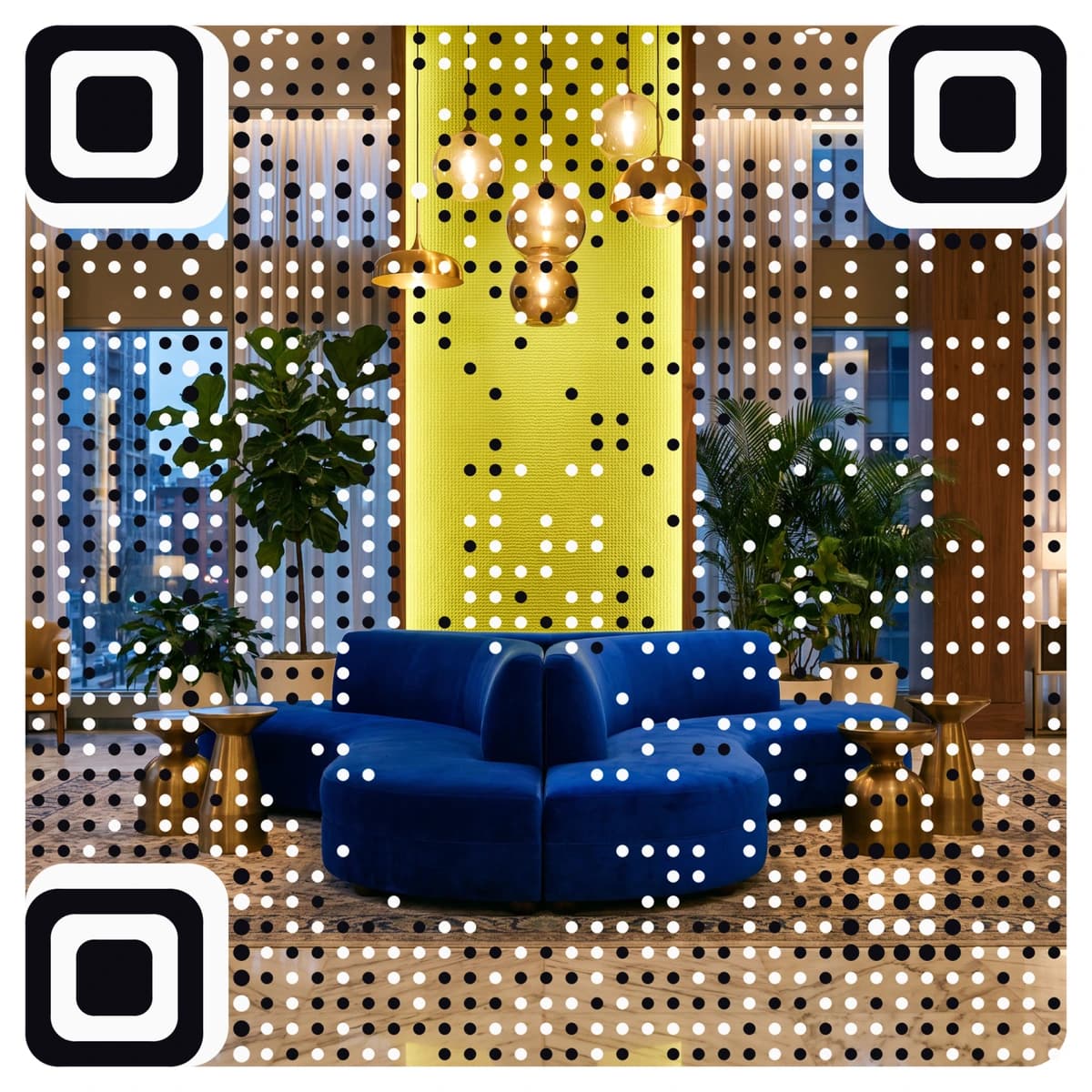
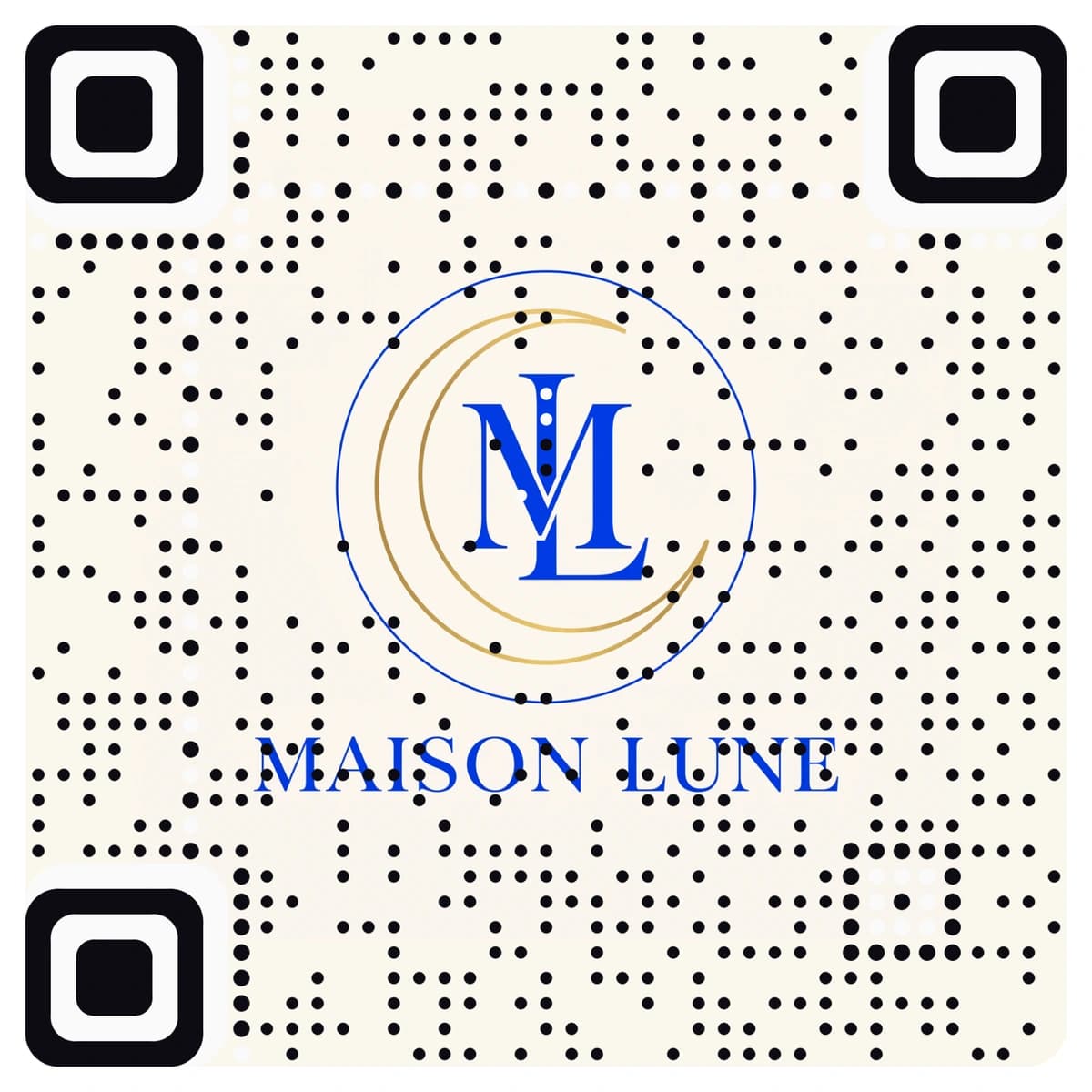
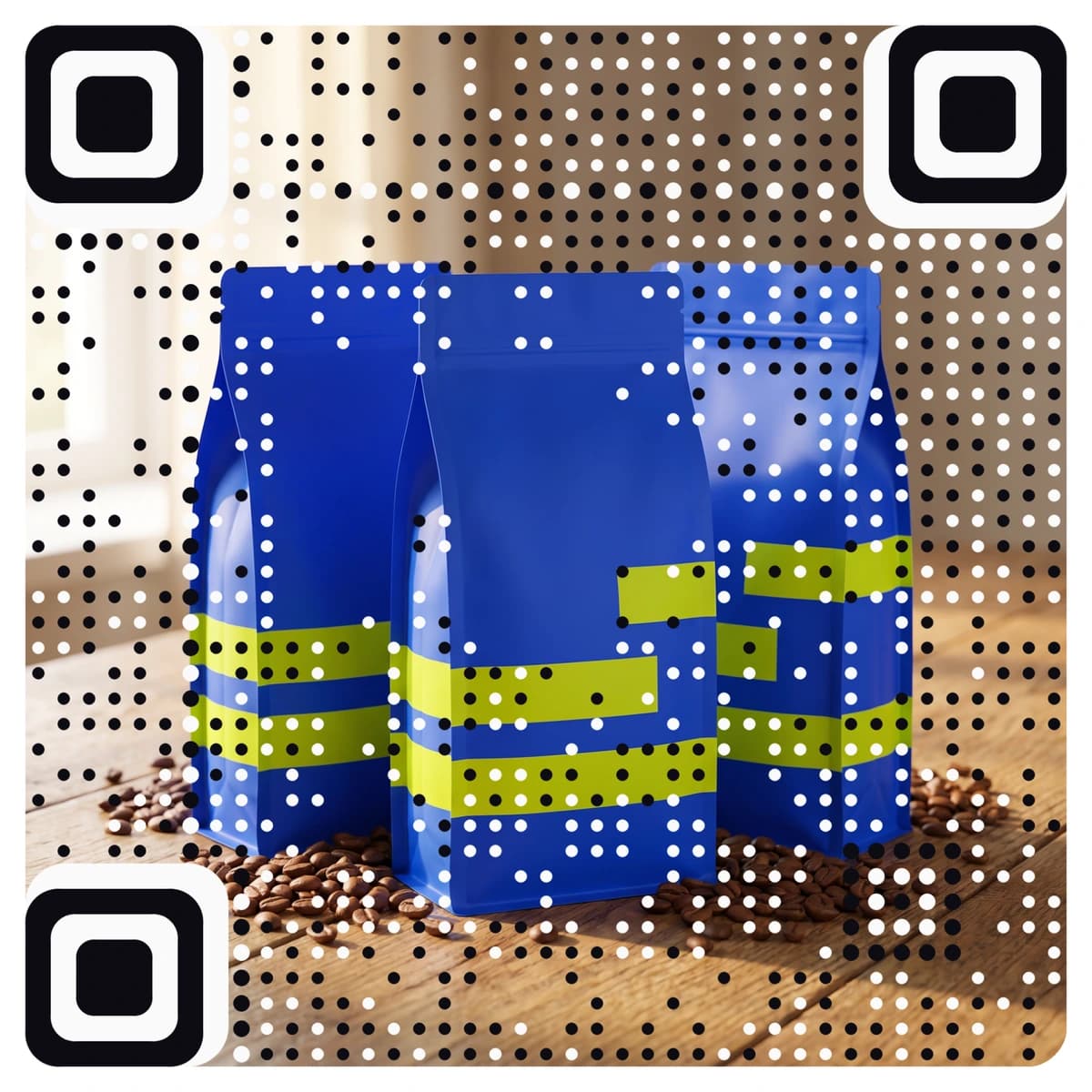
A Google review QR code takes a happy customer straight to your review form, with no searching for your business first. AriaQR makes it from your logo or a picture, so the stand on the counter or the card in the bag looks like your brand rather than an afterthought. The code is dynamic: you can change the link after printing, scans are counted, and every code is tested on real decoders under real-world conditions before you download it.
Where it goes
Where people use a Google review QR code
Hotel front desks and rooms
A card at check-out or a stand on the desk. Guests leave a review while the stay is still fresh, before they have left the lobby.
Clinics, salons and dealerships
On the reception desk or in the follow-up pack, so patients and customers can review the visit the same day.
Retail counters and receipts
A small stand by the till or a code printed on the bag or receipt, to ask for a review at the moment of a good sale.
Tradespeople and agencies
On the invoice, the van or the thank-you card at the end of a job, so reviews come in from real customers.
How it works
How to make a Google review QR code with your logo
- 1
Get your Google review link
In your Google Business Profile, choose “Ask for reviews” and copy the link. It opens the review form for your business.
- 2
Upload your logo or a picture
Your logo, a photo of your shopfront or a product. PNG, JPEG or WebP.
- 3
Choose Google review and paste the link
Paste the link, then check the verdict. Scan it with your phone: it should open your review form.
- 4
Download and print
Download the full-size file. Choose small print for receipts and thank-you cards down to about 1.5 cm; standard works from 4 cm and up.
Every code is tested on real decoders under real-world conditions before you download it. How we verify codes
Design tips
Getting the design right
Ask in plain words
Print “Enjoyed your visit? Leave us a Google review” beside the code. A direct request gets more scans than a code alone.
Ask at the right moment
At check-out, after a finished job or at the till, when the customer is pleased. A card handed over then works better than one on a wall.
Match the stand to the counter
For a counter stand, a code of 5 to 7 cm in a clear acrylic holder is easy to scan from a standing position. Keep glass or glossy reflections off the code.
Questions
Google review QR code questions
How does a Google review QR code work?
The code opens the Google review form for your business. The customer scans, signs in with their Google account, picks a star rating and writes a few words.
Where do I find my Google review link?
Open your Google Business Profile and choose “Ask for reviews”. Copy the link it shows and paste it into the generator.
Can I change the link after printing?
Yes. A review code from AriaQR is dynamic, so you can change the link without reprinting the stands and cards, and scans are counted.
Can I put my logo on a Google review QR code?
Yes, and more than a logo in the middle: AriaQR turns the whole picture into the code. Upload your logo or a photo, paste your review link, and you get a branded review code that is tested before download.
Where can I get a plain Google review QR code for free?
Our free Google review QR code generator makes a standard black-and-white code at no cost. This page is for a code made from your logo or picture.
More types
Other QR codes with your logo
- WiFi QR Code
- Menu QR Code
- Business Card QR Code
- WhatsApp QR Code
- Google Maps QR Code
- Instagram QR Code
- LinkedIn QR Code
- Facebook QR Code
- YouTube QR Code
- Spotify QR Code
- Wedding QR Code
- Link QR Code
- App Download QR Code
- Zoom QR Code
- Google Meet QR Code
- Microsoft Teams QR Code
- Telegram QR Code
- Signal QR Code
- Twitter QR Code
- Snapchat QR Code
- Pinterest QR Code
- Threads QR Code
- Discord QR Code
- Twitch QR Code
- Reddit QR Code
- TikTok QR Code
- SoundCloud QR Code
- Apple Music QR Code
- Social Media QR Code
- PDF QR Code
- Google Drive QR Code
- Dropbox QR Code
- Google Form QR Code
- Text QR Code
- Email QR Code
- SMS QR Code
- Phone Number QR Code
- Event QR Code
- Video QR Code
- Yelp QR Code
- Tripadvisor QR Code
- Trustpilot QR Code
- Amazon Review QR Code
- PayPal QR Code
- Venmo QR Code
- Cash App QR Code
- Linktree QR Code
- Feedback QR Code
- All 60+ types