WiFi QR Code
Your Wi-Fi. Your design.
WiFi QR Code
Made from your picture, not pasted on top
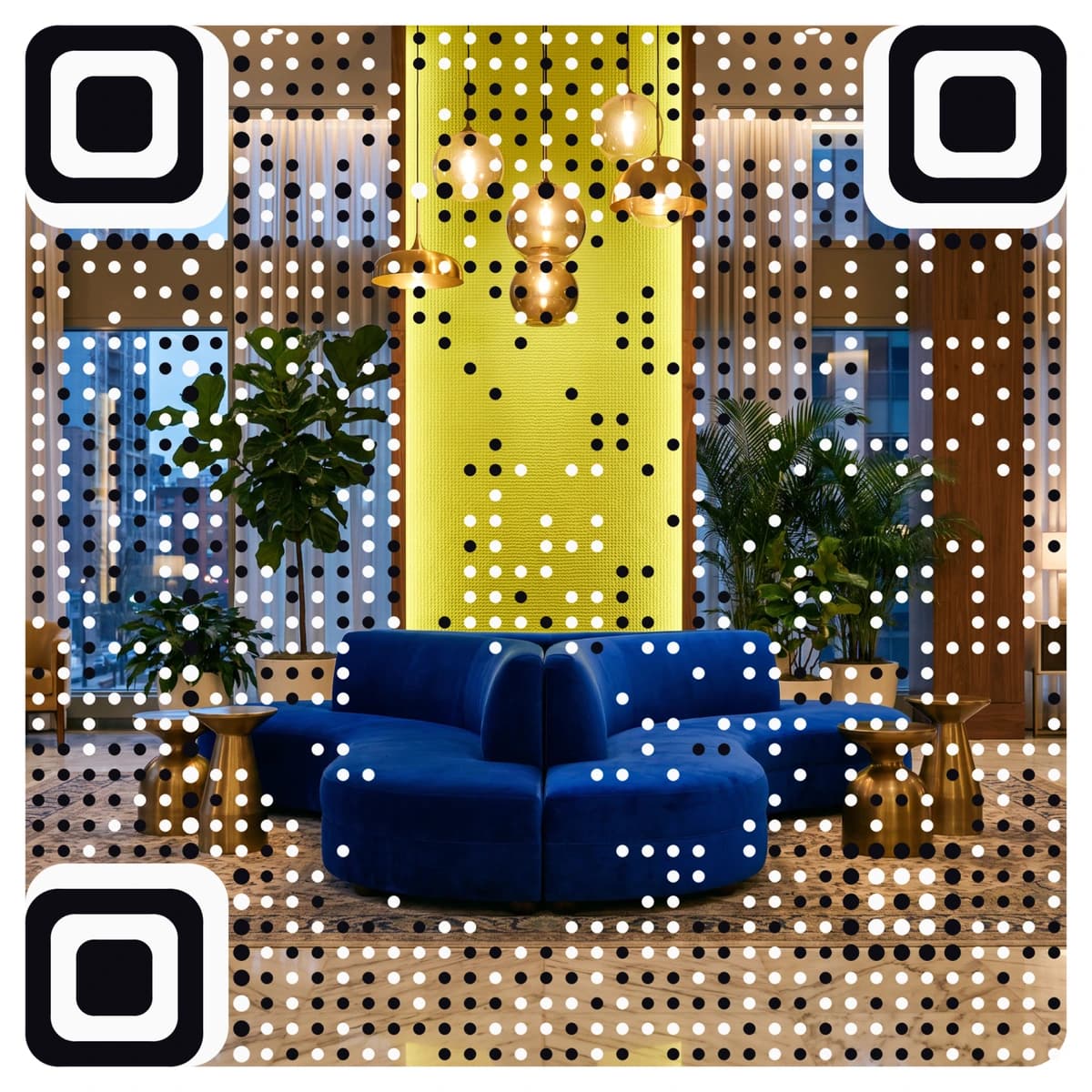
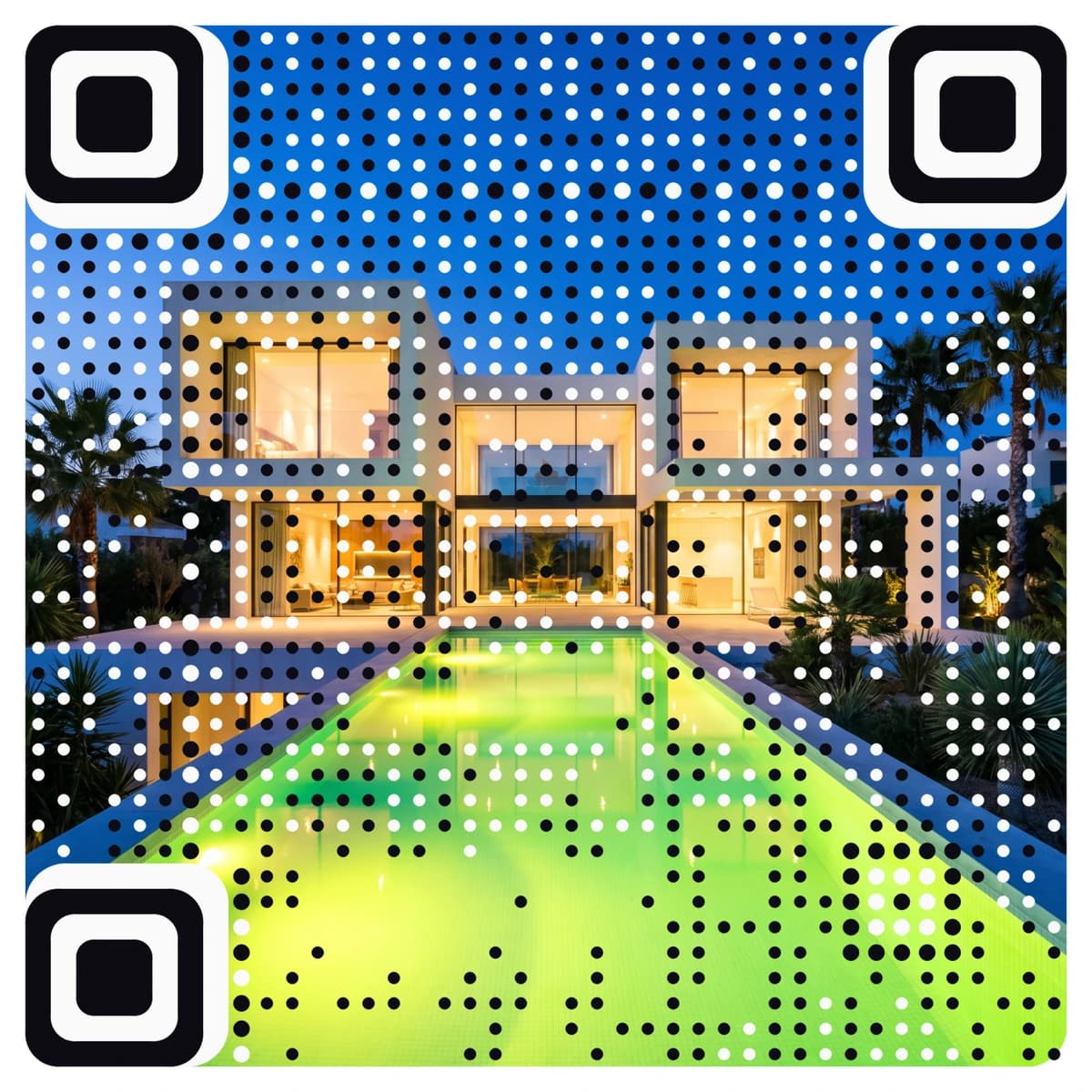
A Wi-Fi QR code lets guests join your network with one scan instead of reading a password off a card. AriaQR makes it from your logo or a picture, so the sign on the wall looks like part of your brand rather than a black-and-white square, and every code is tested on real decoders under real-world conditions before you download it.

Where it goes
Where people use a Wi-Fi QR code
Hotel rooms and lobbies
A framed card by the bed or on the key folder. Guests connect before they unpack, and the front desk stops spelling out passwords.
Rentals and holiday homes
Put it in the welcome book or on the fridge. It works the same for every guest, and it can look like the house itself.
Offices and meeting rooms
A guest network code on the reception desk or the meeting-room screen, in your company colours.
Cafés, bars and shops
A table tent, a counter sign or a sticker on the window. Customers join without asking staff.
How it works
How to make a Wi-Fi QR code with your logo
- 1
Upload your logo or a picture
Your logo, a photo of the room or anything that fits the space. PNG, JPEG or WebP.
- 2
Choose Wi-Fi and enter the network
Type the network name (SSID) and password exactly as they are, and pick the security type. Most networks are WPA.
- 3
Check the verdict, then scan it
Every code is tested before you see it. Point your phone at the screen: it should offer to join the network.
- 4
Download and print
Download the full-size file. Choose small print for key cards and stickers down to about 1.5 cm.
Every code is tested on real decoders under real-world conditions before you download it. How we verify codes
Design tips
Getting the design right
Say what it does
Print a short line next to the code, such as “Scan to join our Wi-Fi”. People scan more when they know what will happen.
Give it room
On a wall or a stand, 6 to 10 cm across reads easily from a seat. Leave a little clear space around it.
Plan for a new password
A Wi-Fi code holds the password itself, so a new password needs a new code. Keep the network name and password stable if the signs are printed in bulk.
Questions
Wi-Fi QR code questions
How does a Wi-Fi QR code work?
The code holds your network name, password and security type. iPhone and Android cameras read it and offer to join the network, so nobody types the password.
Can I put my logo on a Wi-Fi QR code?
Yes, and more than a logo in the middle: AriaQR turns the whole picture into the code. Upload your logo or a photo, enter the network details, and you get a branded Wi-Fi code that is tested before download.
What happens if I change my Wi-Fi password?
The password is stored inside the code, so the old code stops connecting. Make a new code with the new password. If you change passwords often, keep one network for guests with a fixed password.
Is it safe to share my Wi-Fi password this way?
Anyone who scans the code can join, just like anyone who reads a printed password. Use a separate guest network for codes in public places, and keep your main network private.
Where can I get a plain Wi-Fi QR code for free?
Our free Wi-Fi QR code generator makes a standard black-and-white code at no cost. This page is for a code made from your logo or picture.
More types
Other QR codes with your logo
- Menu QR Code
- Business Card QR Code
- WhatsApp QR Code
- Google Review QR Code
- Google Maps QR Code
- Instagram QR Code
- LinkedIn QR Code
- Facebook QR Code
- YouTube QR Code
- Spotify QR Code
- Wedding QR Code
- Link QR Code
- App Download QR Code
- Zoom QR Code
- Google Meet QR Code
- Microsoft Teams QR Code
- Telegram QR Code
- Signal QR Code
- Twitter QR Code
- Snapchat QR Code
- Pinterest QR Code
- Threads QR Code
- Discord QR Code
- Twitch QR Code
- Reddit QR Code
- TikTok QR Code
- SoundCloud QR Code
- Apple Music QR Code
- Social Media QR Code
- PDF QR Code
- Google Drive QR Code
- Dropbox QR Code
- Google Form QR Code
- Text QR Code
- Email QR Code
- SMS QR Code
- Phone Number QR Code
- Event QR Code
- Video QR Code
- Yelp QR Code
- Tripadvisor QR Code
- Trustpilot QR Code
- Amazon Review QR Code
- PayPal QR Code
- Venmo QR Code
- Cash App QR Code
- Linktree QR Code
- Feedback QR Code
- All 60+ types