Spotify QR Code
Your sound. Your artwork.
Spotify QR Code
Made from your picture, not pasted on top
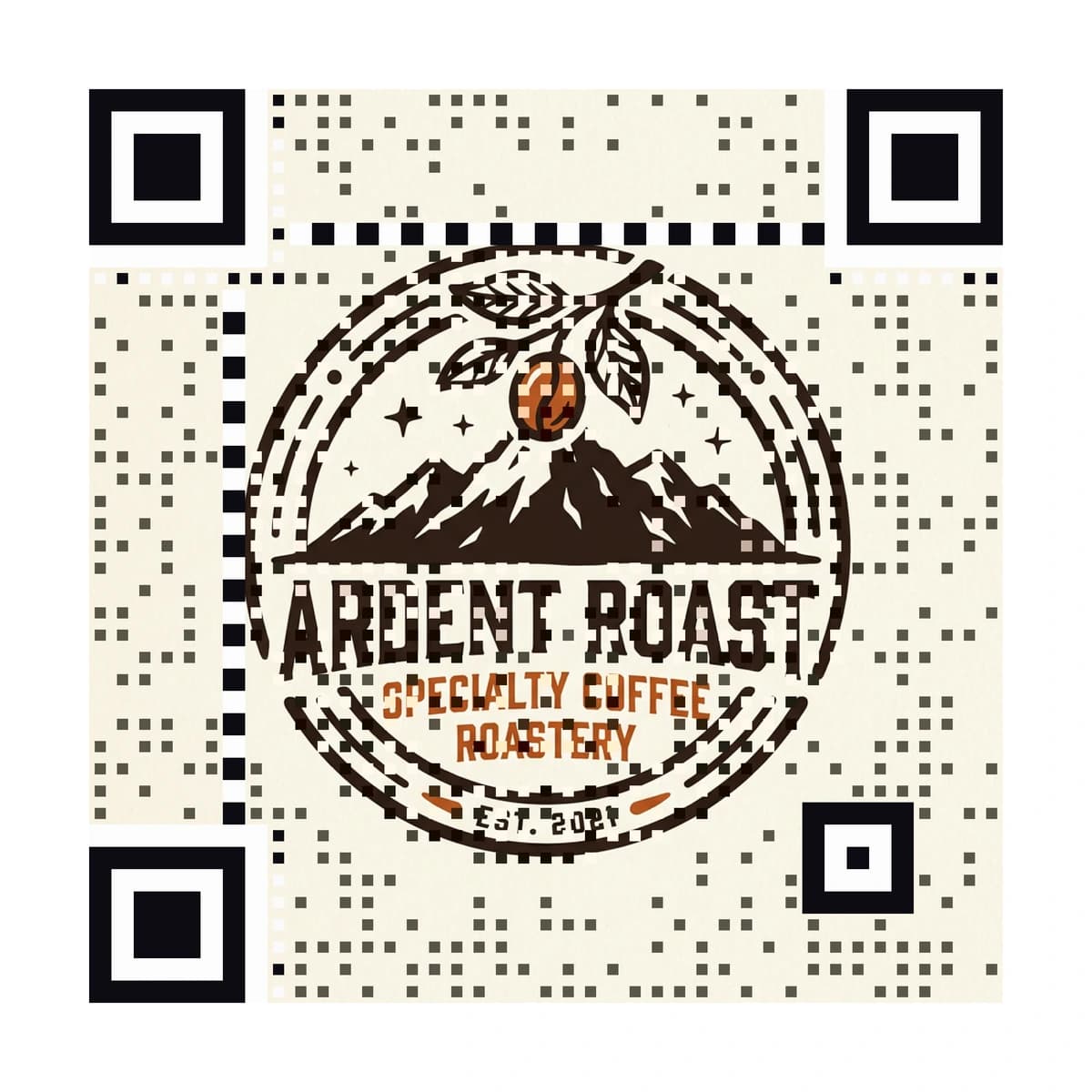
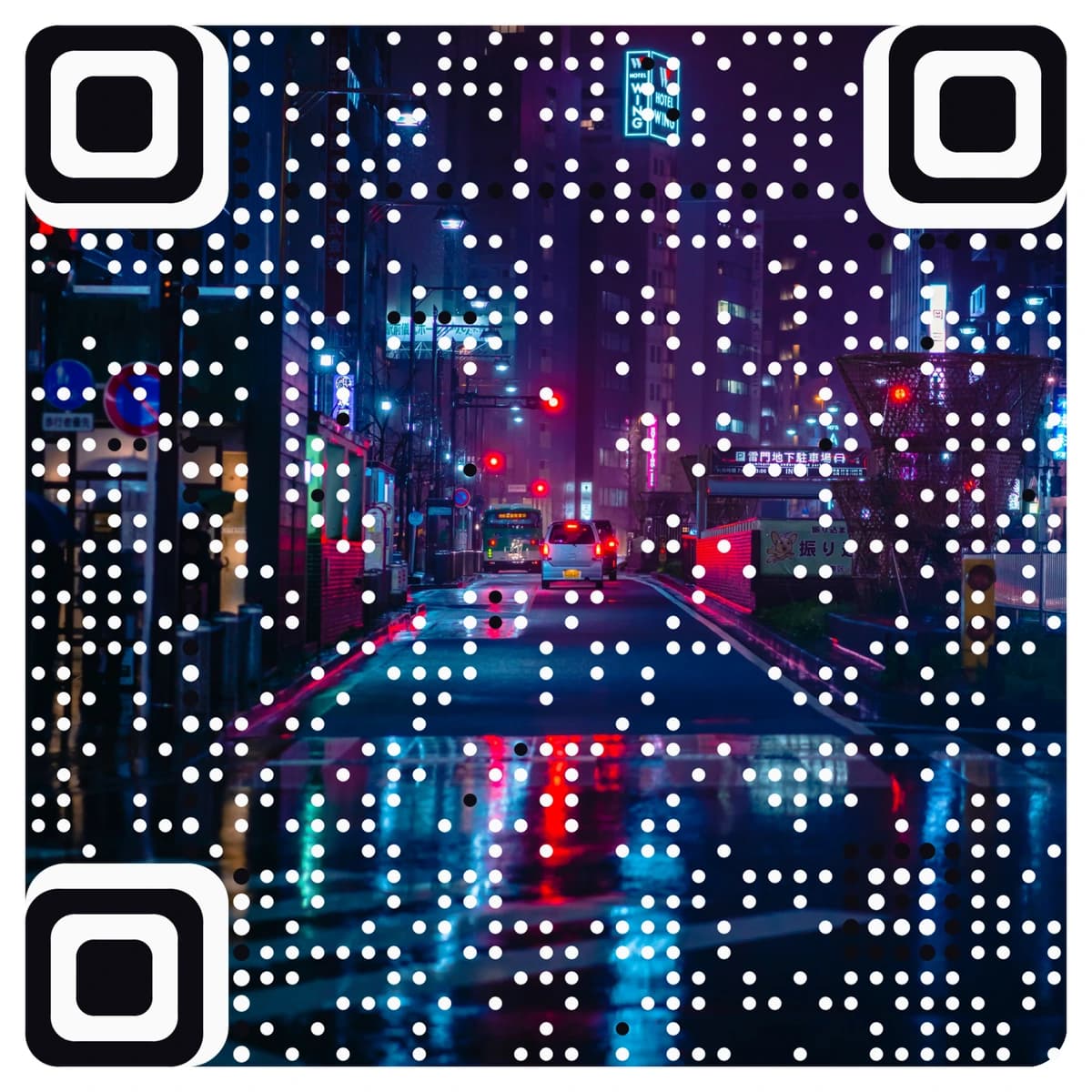
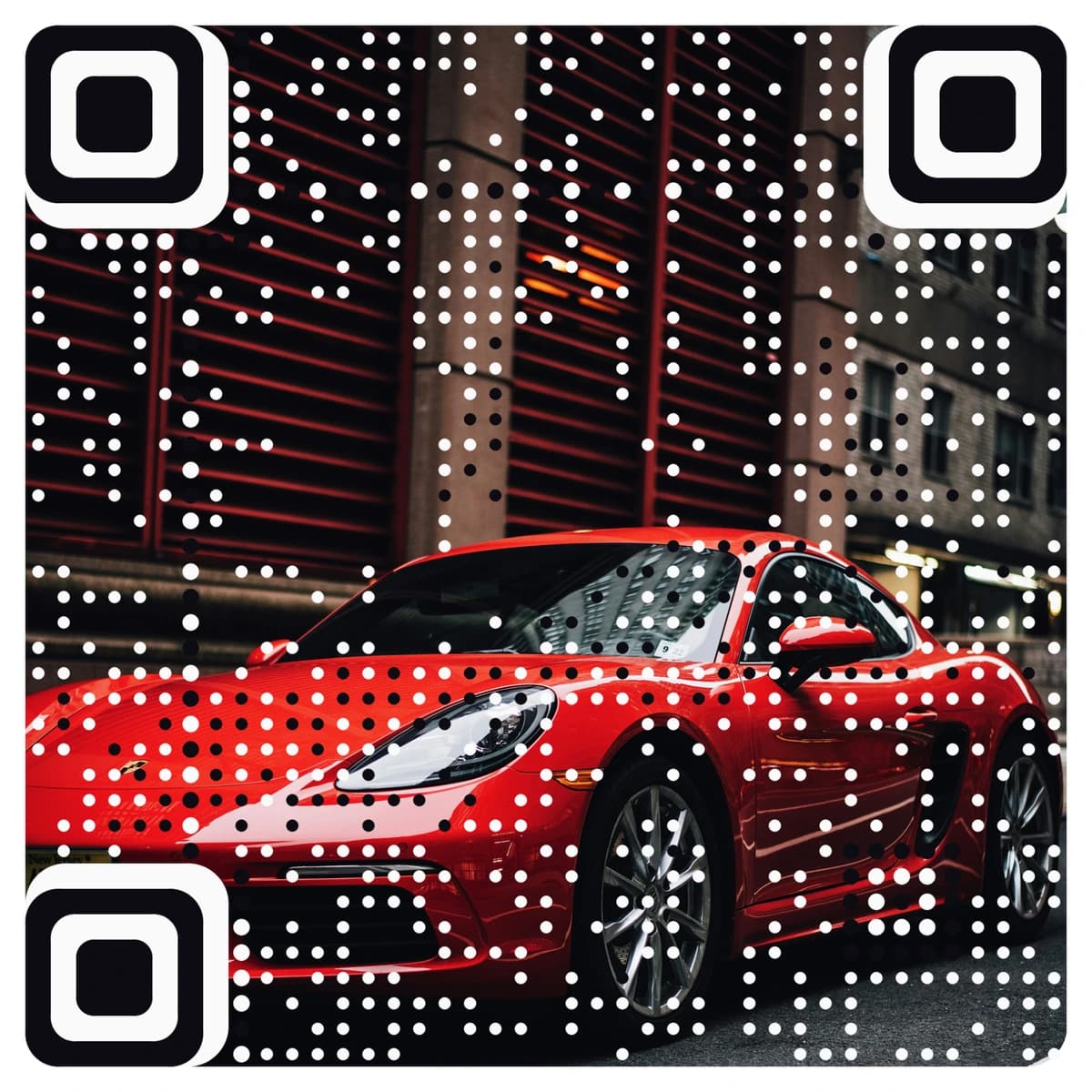
A Spotify QR code puts a song, album, playlist, artist or podcast on a poster, a sleeve or a wall. AriaQR makes the code from your own artwork or logo, so it works as part of the design, and any phone camera opens the link. Every code is tested on real decoders under real-world conditions before you download it.
Where it goes
Where people use a Spotify QR code
Hotels, bars and shops
A card in the lobby or on the counter that opens the playlist playing in the room, so guests take the mood home.
Bands, labels and merchandise
A code on a poster, a record sleeve, a T-shirt tag or a ticket that opens the new single or the whole album.
Podcast cards and conference stands
A card at a booth or a speaking slot that opens the show, so people can subscribe the same day.
Events and weddings
A code on the programme or the table card that opens the evening’s playlist or a shared one the guests can add songs to.
How it works
How to make a Spotify QR code with your logo
- 1
Upload your logo or artwork
Cover art, a band photo, a brand logo or a picture that fits the playlist. PNG, JPEG or WebP.
- 2
Paste your Spotify link
Copy the share link of a song, album, playlist, artist or podcast in Spotify and paste it in. It is just a link, so any of them works.
- 3
Check the verdict, then scan it
Every code is tested before you see it. Scan it with the normal camera on your phone: it should offer to open Spotify.
- 4
Download and print
Download the full-size file. The standard setting suits 4 cm and up; choose small print for sleeves and tags, down to about 1.5 cm.
Every code is tested on real decoders under real-world conditions before you download it. How we verify codes
Design tips
Getting the design right
Label it
Write “Scan to listen” and the name of the playlist or release. Without it, people do not know what a picture-code will open.
Use your cover art or a clean logo
A recognisable picture is a strong design. Keep the code large enough on the sleeve or poster that it is not squeezed into a corner.
Choose a link you can live with
A playlist can be updated over time, while a single track stays fixed. For printed work that lasts, a playlist or artist link gives you more room.
Questions
Spotify QR code questions
How do I make a Spotify QR code for a song or playlist?
Copy the share link from Spotify, upload your artwork or logo, and paste the link in. AriaQR creates the code, tests it, and gives you a print-ready file.
Can I link an album, an artist or a podcast?
Yes. Any Spotify link works: a song, album, playlist, artist or podcast. The code just opens the link on the phone.
How is this different from Spotify Codes?
Spotify Codes are Spotify’s own soundwave-style bars, and only the camera inside the Spotify app reads them. Ours is a real QR code, so any phone’s normal camera opens it, and it is made from your picture. You can also change the destination after printing, and scans are counted.
Can I change the link after I print it?
Yes. The code is dynamic, so you can point it at a new release or a different playlist without reprinting the sleeve or the poster.
Where can I get a plain Spotify QR code for free?
Our free Spotify QR code generator makes a standard black-and-white code at no cost. This page is for a code made from your logo or artwork.
More types
Other QR codes with your logo
- WiFi QR Code
- Menu QR Code
- Business Card QR Code
- WhatsApp QR Code
- Google Review QR Code
- Google Maps QR Code
- Instagram QR Code
- LinkedIn QR Code
- Facebook QR Code
- YouTube QR Code
- Wedding QR Code
- Link QR Code
- App Download QR Code
- Zoom QR Code
- Google Meet QR Code
- Microsoft Teams QR Code
- Telegram QR Code
- Signal QR Code
- Twitter QR Code
- Snapchat QR Code
- Pinterest QR Code
- Threads QR Code
- Discord QR Code
- Twitch QR Code
- Reddit QR Code
- TikTok QR Code
- SoundCloud QR Code
- Apple Music QR Code
- Social Media QR Code
- PDF QR Code
- Google Drive QR Code
- Dropbox QR Code
- Google Form QR Code
- Text QR Code
- Email QR Code
- SMS QR Code
- Phone Number QR Code
- Event QR Code
- Video QR Code
- Yelp QR Code
- Tripadvisor QR Code
- Trustpilot QR Code
- Amazon Review QR Code
- PayPal QR Code
- Venmo QR Code
- Cash App QR Code
- Linktree QR Code
- Feedback QR Code
- All 60+ types