Guide 4 · The dashboard
Your dashboard, every feature
A tour of every section: codes, analytics, landing pages, leads, short links, your team, API keys, billing and settings.
Spoken in English, with subtitles in 49 languages. Recorded on the live product with Harbor & Pine Hotel, a demo account.
Step by step
Step 1
Overview
Your dashboard opens on “Overview”: scans in the last 30 days, how many codes you have, and the activations left on your plan.
Step 2
Switch workspace
The workspace menu switches between your own account and a team you belong to.
Step 3
Make something new
“New” makes anything: a picture code, a free classic code, a short link or a landing page.
Step 4
Search
Search finds any code, page or link by name.
Step 5
Codes
“Codes” lists every code. Search them, filter by kind or status, or switch to a table.
Step 6
Change where a code points
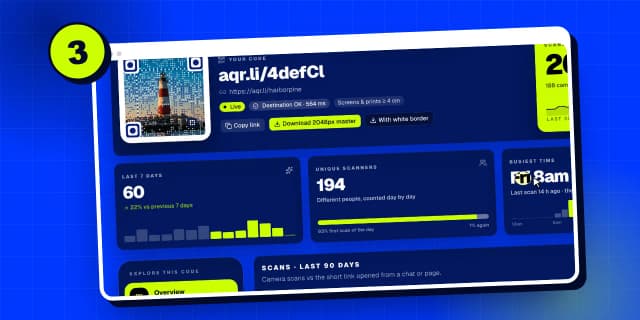
Click a code to change where it points at any time, without reprinting it. Its full report and downloads are one click away.
Step 7
Analytics
“Analytics” shows the scans across all your codes: when, where and on which phones, over 7, 30 or 90 days.
Step 8
Landing pages
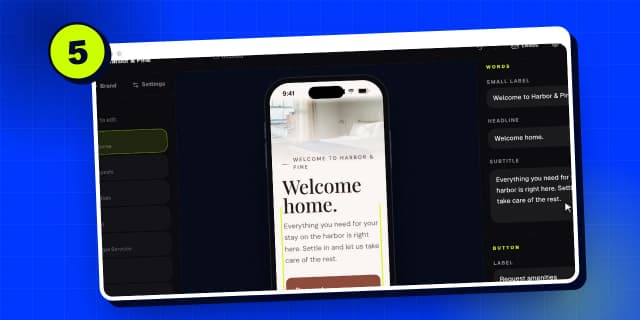
“Landing pages” holds the mobile pages you make with the AI builder. Guide 5 shows how.
Step 9
Leads
“Leads” collects every form people send from your pages, with export and email alerts.
Step 10
Short links
“Short links” makes short aqr.li links with click stats. Each one is safety checked every day.
Step 11
Team
“Team” shares a workspace. Invite people by email, and every code activates on the owner’s plan.
Step 12
API keys and AI connectors
“Developers” gives you keys for the REST API, and connector links so Claude or ChatGPT can make codes and pages for you.
Step 13
Billing
“Billing” shows your plan, the activations you’ve used, and your receipts and invoices.
Step 14
Settings
And “Settings”: your sign-in, your own short domain, verified domains, and bulk uploads of up to 50 images at once.
Search all guides
Language: English
Language
- English
- Español
- Português
- Français
- Deutsch
- Italiano
- Nederlands
- Polski
- Türkçe
- Русский
- Українська
- العربية
- فارسی
- עברית
- اردو
- हिन्दी
- বাংলা
- தமிழ்
- తెలుగు
- मराठी
- ગુજરાતી
- ಕನ್ನಡ
- മലയാളം
- Bahasa Indonesia
- Bahasa Melayu
- Tiếng Việt
- ไทย
- Filipino
- 日本語
- 한국어
- 简体中文
- 繁體中文
- Svenska
- Dansk
- Norsk
- Suomi
- Čeština
- Română
- Magyar
- Ελληνικά
- Slovenčina
- Slovenščina
- Hrvatski
- Srpski
- Български
- Lietuvių
- Latviešu
- Eesti
- Kiswahili