Guide 5 · Landing pages
Create a landing page in two minutes
Describe your business, let the AI design the page, add your photos, edit the words, then publish it at a short address your QR code opens.
Spoken in English, with subtitles in 49 languages. Recorded on the live product with Harbor & Pine Hotel, a demo account.
Step by step
Step 1
Start a new page
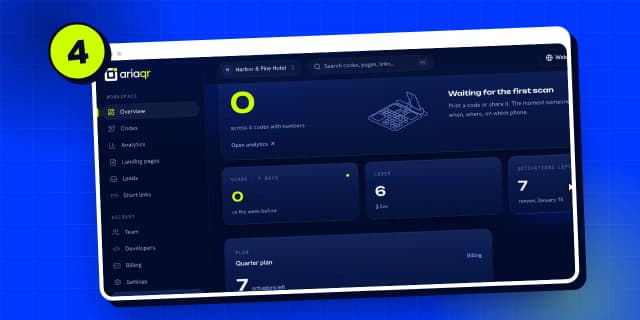
Start on your dashboard. Open “Landing pages”, then click “New page”.
Step 2
What the page is for
First, say what the page is for. For a hotel, pick “Hotel & guests”.
Step 3
Let the AI design it
Choose “Describe it”, and the AI designs the layout, colours and words from a few answers.
Step 4
Your brand and business
Type your brand name, then describe the business in a sentence or two. Specifics make better pages.
Step 5
Goal and placement
Pick what guests should do after they scan, and where the code will be printed.
Step 6
Pick a mood
Choose up to three moods for the design.
Step 7
Choose the address
Then choose the page address. This is the short link your QR code will open.
Step 8
Design my page
Click “Design my page”. It takes about half a minute.
Step 9
The editor
Your page is ready. The blocks are on the left, and the phone shows exactly what guests will see.
Step 10
Add your photos
The AI marks where each photo should go. Click a photo spot to upload your own, and choose the part to show.
Step 11
Fill every photo spot
Fill the other spots the same way.
Step 12
Edit and rewrite text
Click any text on the page to edit it. “Rewrite” asks the AI for three better versions.
Step 13
The request form
The AI also added a request form. Each request a guest sends lands in your Leads, and you can get an email for every one.
Step 14
Add more blocks
Need more? Add any block from the panel: opening hours, a map, a video, an offer and more.
Step 15
Brand colours and fonts
In “Brand”, set the colours and fonts for the whole page at once.
Step 16
Publish and check
When it looks right, click “Publish”. You get a quick check of the details the AI guessed, like the Wi-Fi password.
Step 17
It’s live
Confirm, and the page goes live at its address straight away.
Step 18
The live page
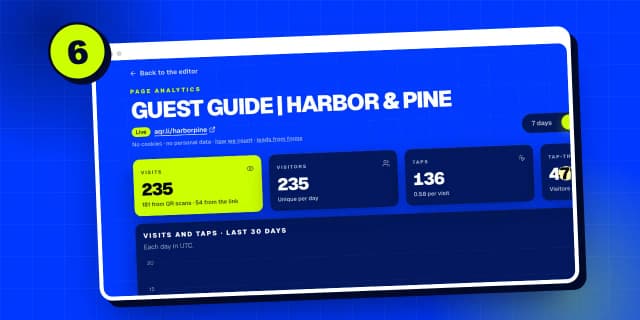
Here it is, live on the web. Next, make a QR code that opens it.
Search all guides
Language: English
Language
- English
- Español
- Português
- Français
- Deutsch
- Italiano
- Nederlands
- Polski
- Türkçe
- Русский
- Українська
- العربية
- فارسی
- עברית
- اردو
- हिन्दी
- বাংলা
- தமிழ்
- తెలుగు
- मराठी
- ગુજરાતી
- ಕನ್ನಡ
- മലയാളം
- Bahasa Indonesia
- Bahasa Melayu
- Tiếng Việt
- ไทย
- Filipino
- 日本語
- 한국어
- 简体中文
- 繁體中文
- Svenska
- Dansk
- Norsk
- Suomi
- Čeština
- Română
- Magyar
- Ελληνικά
- Slovenčina
- Slovenščina
- Hrvatski
- Srpski
- Български
- Lietuvių
- Latviešu
- Eesti
- Kiswahili