Guide 3 · Code analytics
See who scans your code
Read a code’s full report: scans over time, when and where people scan, their phones, placement tests, alerts, exports and the totals for your whole workspace.
Spoken in English, with subtitles in 49 languages. Recorded on the live product with Harbor & Pine Hotel, a demo account.
Step by step
Step 1
Open the full report
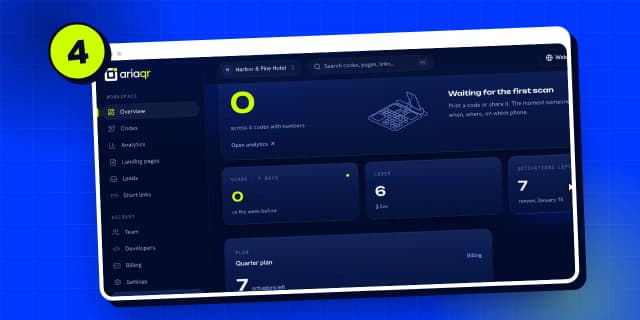
Every live code counts its scans. In “Codes”, click your code, then open its full report.
Step 2
All-time scans
At the top: scans of all time, split into camera scans and links opened from a chat or a page.
Step 3
This week and busiest time
Then the last 7 days, how many different people scanned, and your busiest time.
Step 4
Scans day by day
The chart shows every day, camera scans against link opens.
Step 5
When people scan
When people scan, in each scanner’s own local time. For this hotel, breakfast and the evening.
Step 6
Latest scans
How they got here, and the latest scans: when, roughly where, and on which phone. No cookies, and no personal data.
Step 7
Scan map
“Where” puts every scan on a map, with countries, regions, cities and postal codes.
Step 8
Devices and languages
“Devices” shows phones and browsers, apps like Instagram, and languages.
Step 9
Placement tests
“Placements” tests a second spot: the same picture and link on a new code, so you can see which place earns more scans.
Step 10
Settings and alerts
In “Settings”, change where the code points at any time, and get alerts or a scan digest by email.
Step 11
Export and share
Download every scan as a spreadsheet, or share a read-only view with a client.
Step 12
Workspace analytics
And “Analytics” in your dashboard adds up every code in your workspace.
Search all guides
Language: English
Language
- English
- Español
- Português
- Français
- Deutsch
- Italiano
- Nederlands
- Polski
- Türkçe
- Русский
- Українська
- العربية
- فارسی
- עברית
- اردو
- हिन्दी
- বাংলা
- தமிழ்
- తెలుగు
- मराठी
- ગુજરાતી
- ಕನ್ನಡ
- മലയാളം
- Bahasa Indonesia
- Bahasa Melayu
- Tiếng Việt
- ไทย
- Filipino
- 日本語
- 한국어
- 简体中文
- 繁體中文
- Svenska
- Dansk
- Norsk
- Suomi
- Čeština
- Română
- Magyar
- Ελληνικά
- Slovenčina
- Slovenščina
- Hrvatski
- Srpski
- Български
- Lietuvių
- Latviešu
- Eesti
- Kiswahili