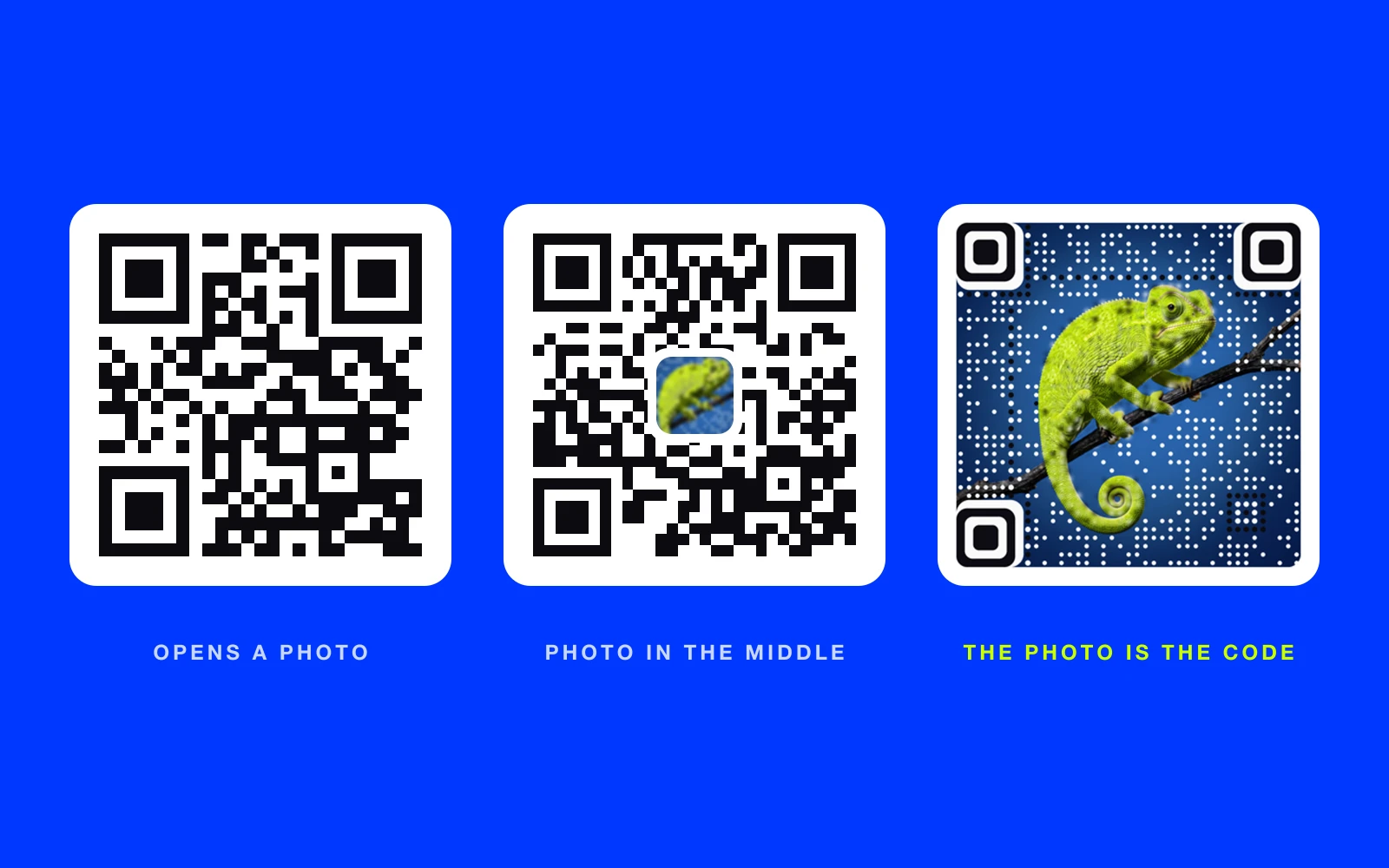
To make a QR code with a picture, upload the image to a picture QR code generator, choose what the code should open, and download the result. The same steps turn a picture into a QR code, whether you call it a picture QR code, a photo QR code, a QR code with an image or a QR code from an image. On AriaQR the picture becomes the code itself: it still looks like your photo, logo or illustration, and every code is verified to scan before you download it. If what you actually need is a code that opens a photo, that is a different job, and it is covered below too.
What does "QR code with picture" mean?
People search for it under many names: QR code with image, QR code with photo, picture into QR code, picture to QR code, QR code from image, QR code from picture, image in QR code or QR code inside image. Every one of them means one of three different things, and picking the right one first saves a reprint.
| What you want | What you get | Best for | Watch out for |
|---|---|---|---|
| A code that opens a picture | A normal black-and-white code that links to a photo or album | Sharing event photos, a menu photo, a portfolio | The code looks like every other code |
| A picture in the middle of a code | A standard square code with a logo or photo pasted over the center | Quick brand touch on a flyer | The picture is small and covers part of the code |
| The picture is the code | Your whole image, drawn as a working QR code | Posters, packaging, menus, cards, invitations, art prints | Only some tools check that the result scans |
The first is about the destination. The second and third are about the look. You can combine them: a code made from your photo that also opens your photo album.
How to turn a picture into a QR code
This is what most people mean by "image to QR code" when they want something that stands out on print: the image as the QR code, not a sticker on top of it. To create a QR code with a picture this way, use an image to QR code generator that keeps your picture whole.
- Open the generator. Go to the AriaQR generator. No account is needed to start.
- Upload your image. A photo, logo, illustration or painting works; this is the moment the picture goes into the QR code. Clear subjects with good contrast give the best result: a face, a product, a pet, a landmark, a bold logo.
- Choose what the code opens. A website, a menu or PDF, a WhatsApp chat, Wi-Fi, a contact card, a review page, a social profile, a calendar event and more.
- Pick a square code or a code in your picture. A square code turns the image into the code. "Code in your image" keeps a larger poster or photo whole and places the QR code inside the image, sized and positioned where you want.
- Check the verdict and the look. Each code is verified on real decoders under real-world conditions before download. Change eye shapes, dot shapes and colors if you like; the code and its link stay the same.
- Download. You get a 2048px master PNG, with or without a white border, and the full artwork for codes placed in a picture.
If the code is going on a business card, label or sticker, choose the small print build. It is verified down to about 1.5 cm. Small print QR codes explains when that matters.
How to make a QR code for a picture (one that opens it)
If you just want people to scan and see a photo, the picture has to live online first.
- Put the photo online. A shared album (Google Photos, iCloud, Dropbox), your website, or a PDF.
- Copy the public link. Open it in a private browser window to confirm strangers can see it.
- Make a code for the link. The free QR code generator makes a classic code with an editable link and scan analytics. For a QR code with the photo it opens as its look, use the photo QR code generator above.
- Test before printing. Scan it with two different phones, or upload it to the free QR code tester.
Use a dynamic code here. Albums get moved and links break. With a dynamic code you change where it points in your dashboard, and the printed code keeps working. Dynamic vs static QR codes covers the trade-off.
Weddings are the classic case: a card on each table that opens the guest photo album. Wedding QR codes has the details.
Can you put an image in a QR code?
Yes, but how the image in the QR code is done matters. There are three ways a QR code generator with image support can go about it.
Pasting a logo over the middle is the common approach, and a standard code tolerates a small covered area. The cost is that your image is small, square and sits on top of a grid. It looks like a code with a sticker on it. The free add-QR-to-image tool places a standard code onto a photo if that is all you need.
AI-generated "art" codes make a brand-new picture from a text prompt with a code worked into it. Some are stunning. Many fail on a real phone at a real size, and the picture is not yours. AI QR code generators vs AriaQR compares the two fairly.
Picture QR codes keep your actual image and make it the code, which is why people searching for a QR code from a picture usually want this one. The question to ask any tool is simple: does it check that the result scans before you print? AriaQR does, on every code, and tells you plainly if a code only scans up close.
Which pictures work best?
- Clear subject, simple background. A portrait, a product shot, a pet, a logo on a plain field.
- Good contrast. Strong lights and darks read better than a foggy or washed-out photo.
- Square-ish crops for square codes. For wide posters or banners, use "code in your image" so the whole picture stays.
- Your own image, or one you have rights to. Brand photography, illustrations you commissioned, artwork in the public domain.
Real estate agents use the listing photo of the house. Coffee roasters use the bag art. Event planners use the poster. Restaurants use a dish. The code stops looking like a technical add-on and starts looking like part of the design. Regular QR codes vs AriaQR shows side-by-side examples.
What size should a photo QR code be?
For most print, 4 cm (about 1.6 inches) or larger is comfortable for a phone at arm's length. Posters read from across a room need to be bigger. A useful rule is that the code should be roughly a tenth of the scanning distance. The QR code size calculator works it out for any distance. For cards and labels, use the small print build.
Where to start
If you want people to notice the code, make the picture the code: open the generator, upload your best image and preview it for free. If you only need a code that opens a photo, start with the free QR code generator and a shared album link. Either way, test it before it goes to the printer. For costs, see pricing.