
Why do so many people squint at a code on a menu and give up, and what makes accessible QR codes different? Mostly size, contrast and clear words, not technology. A code that works for a 75-year-old with reading glasses, or someone with low vision, works better for everyone else too.
The good news is that accessibility here is mostly about a few simple choices: size, contrast, clear words, a fallback and a fast page. Here is how to get each one right.
Who struggles with QR codes, and why
Codes ask a lot in a few seconds. You need to notice the code, know that your camera can read it, hold the phone steady at the right distance, then read and tap a small link on screen. Each step can trip someone up:
- Older adults may have less sharp near vision, less steady hands and less confidence that they are doing it right.
- People with low vision may not see a small code at all, especially in poor contrast.
- Screen reader users cannot easily aim a camera at a code they cannot see.
- People with older phones may have slower cameras or apps that do not show a link preview.
- Anyone in a hurry or in bad light benefits from the same fixes.
Design for the hardest case and the easy cases take care of themselves.
How to design accessible QR codes
Run every code through this checklist before it goes to print.
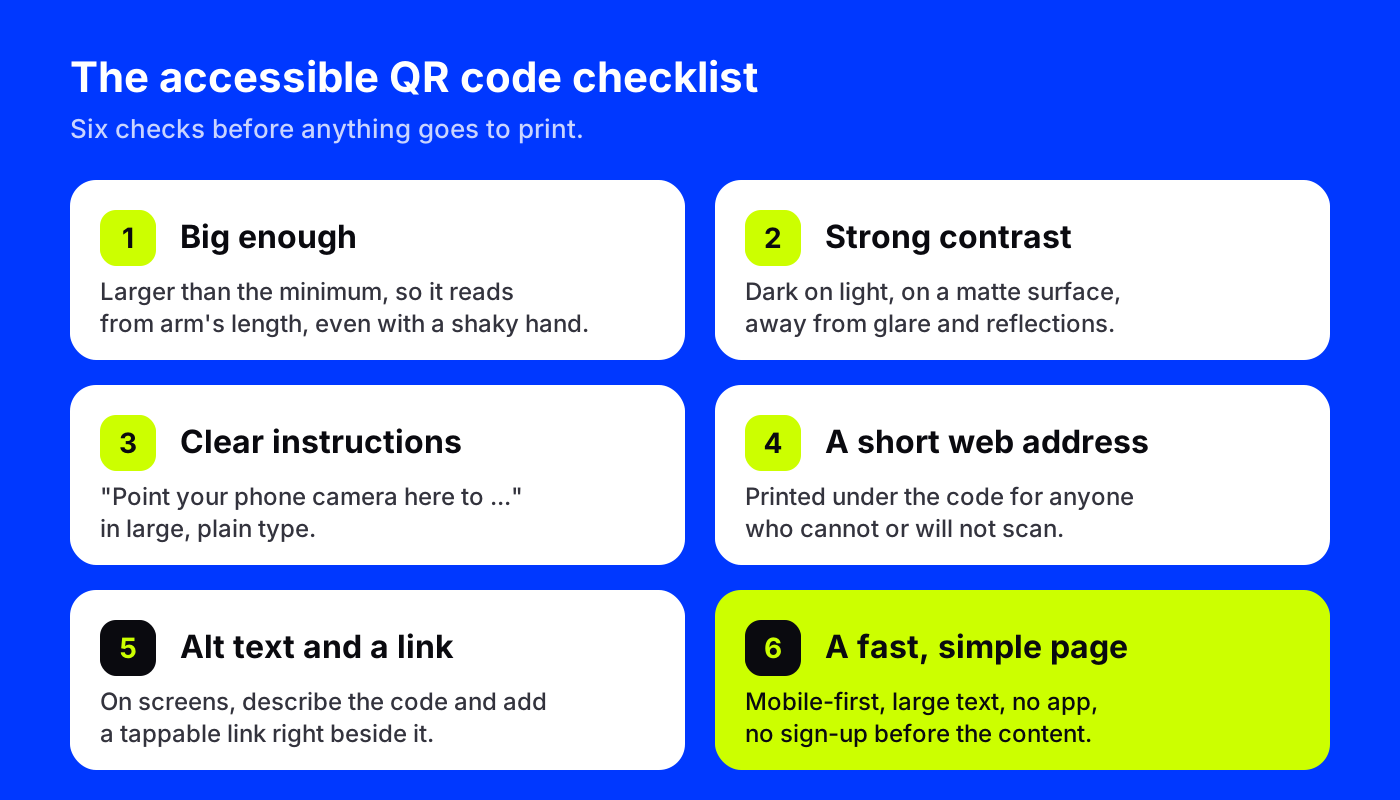
1. Print it bigger than the minimum
Minimum sizes are for ideal conditions. For handheld print such as menus, leaflets and letters, go well beyond the smallest size that works on your own phone. Around 3 cm (about 1.2 inches) is a comfortable starting point for something held in the hand.
For signs, scale with distance. A common rule of thumb is that the code should be roughly a tenth as wide as the distance people stand from it. A poster read from 2 meters away needs a code about 20 cm wide.
Place the code at a height people can reach with a phone, not above a door or down by the floor. For wheelchair users, a code at chest height on a standing person can be out of comfortable range, so lower is often better.
2. Keep contrast strong and surfaces matte
Dark code on a light background, every time. Light-on-dark codes and low-contrast color pairs confuse many scanners and are harder to see for anyone with low vision.
Glossy lamination, glass and shiny packaging bounce light straight back into the camera. Choose matte finishes where you can, and keep codes out of direct spotlights and window glare. If you want to use brand colors, test the pair first in the free QR code contrast checker.
Design can still be part of this. A picture code works well when the image has clear light and dark areas, like this portrait:
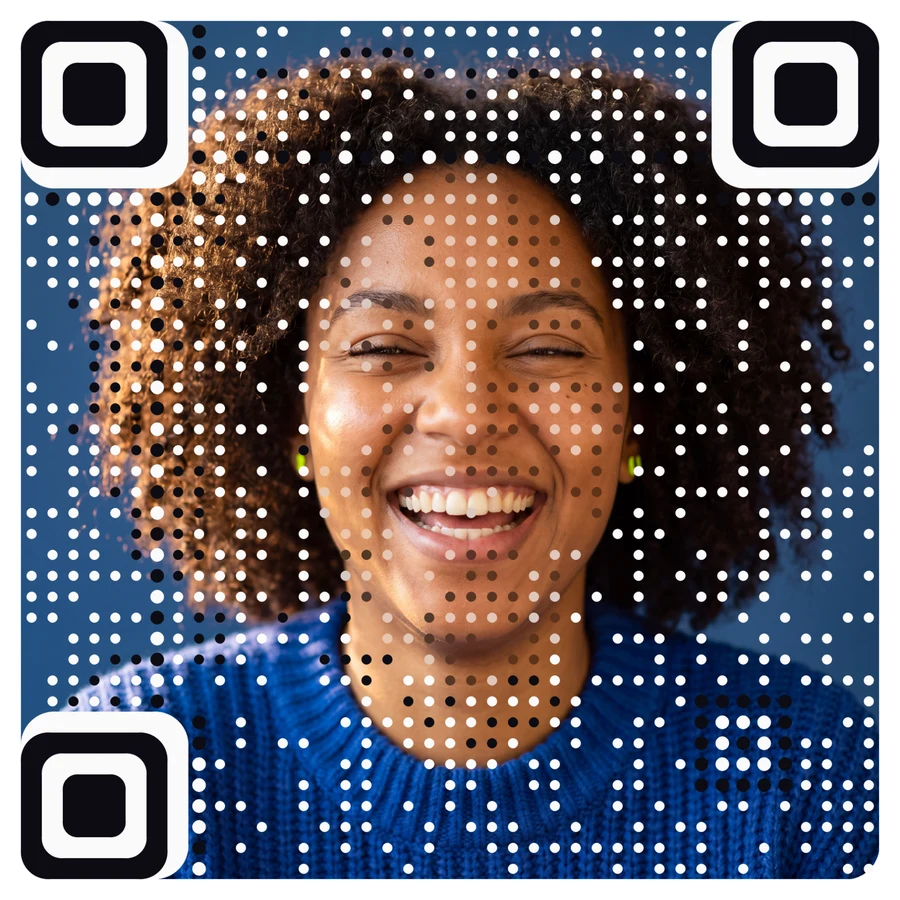
Every AriaQR code is verified on real decoders under real-world conditions before download, and the site tells you plainly if a design only scans up close, so you can choose a bolder image or a larger print before it reaches customers.
3. Write instructions in plain words
Do not assume people know what to do. One short line in large, plain type helps everyone:
- "Point your phone camera here to see today's menu. No app needed."
- "Scan with your phone camera to book a table."
Name what the code opens, say how to scan it, and say that no app is needed. That last phrase removes one of the most common worries for older users. Our list of call-to-action lines to put under a QR code has more examples you can adapt.
4. Always print a short web address as a fallback
Some people will never scan, and that is fine. Print a short, readable web address under the code so they can type it instead. Keep it as short as possible and avoid letters that are easy to confuse.
A dynamic AriaQR code already runs on a short link, so you can print that as the typed fallback. Both routes lead to the same page and both are counted.
5. Give codes on screens alt text and a link
Codes in emails, PDFs and websites need two things:
- Alt text that says what the code does, for example "QR code: opens our lunch menu at example.com/menu".
- A normal tappable link right beside it. Someone reading on a phone cannot scan a code on the same screen, and screen reader users should not have to.
6. Send people to a fast, simple page
The scan is only half the job. If the page that opens is tiny, slow or asks for an account first, you lose people at the last step.
- Mobile-first layout with large text and big buttons.
- Light pages that open quickly on weak signal.
- No app download and no sign-up before the content.
- Real text, not a picture of text, so it can be zoomed and read aloud.
A PDF menu fails most of these. Our guide on what a QR code should link to covers better destinations.
Where to start
Pick the code your oldest customers meet most often, perhaps on a menu, a waiting room poster or a letter. Print a test copy at real size, hand it to someone who rarely scans codes, and watch without helping. Every hesitation tells you which of the six checks to fix first.