Choosing a QR code file format for print gets confusing fast: your designer says SVG, the print shop asks for a PDF, and the code generator gave you a PNG. Which one is right? For a classic black-and-white code, send a vector file, SVG or a PDF made from it; for a picture QR code, send the high-resolution PNG, or a PDF with that PNG placed inside. It comes down to one question: is your code made of shapes or of pixels?
What is the difference between SVG, PNG and PDF?
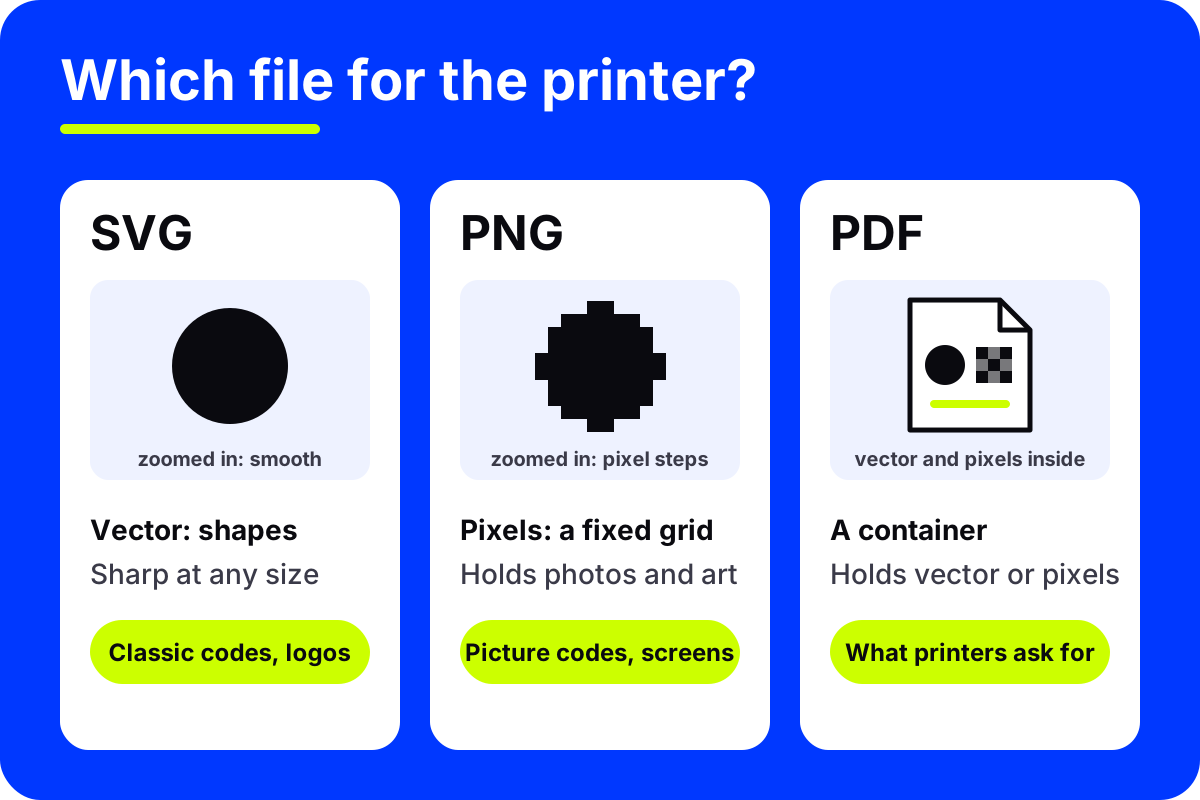
SVG is a vector format. It describes the code as shapes, so it can be scaled from a stamp to a building wrap and the edges stay perfectly sharp. Design apps open it, and you can recolor it there.
PNG is a pixel format. The image is a fixed grid of colored squares, stored without lossy compression, so the edges stay clean at the size it was made. Scale it far beyond that and it gets soft. Photos, paintings and artwork are always pixels, so PNG is the natural format for them.
PDF is a container, not a type of image. It can hold vector shapes, pixel images, text and print settings, all in one file. That is why printers like it: one file, laid out at the final size, with nothing missing. A PDF of a code is only as sharp as what you put inside it.
JPG is a pixel format with lossy compression. It is great for photos on the web and poor for codes, because it blurs hard edges and leaves faint smudges around them. Do not send a JPG of a code if you have any other option.
| Format | Made of | Stays sharp when enlarged | Holds a photo | Best for |
|---|---|---|---|---|
| SVG | Shapes | Yes | Not really | Classic codes, logos, signage |
| PNG | Pixels | Up to its pixel size | Yes | Picture codes, screens, most print |
| Either | Depends on contents | Yes | Final print-ready layouts | |
| JPG | Pixels, compressed | No | Yes | Avoid for codes |
Which QR code file format for print should you choose?
Start with the kind of code you have.
A classic code. Send SVG to your designer, and a PDF of the finished layout to the printer. If you only have a small PNG or a screenshot of a classic code, rebuild it as a vector rather than enlarging the image. AriaQR's free tools include a QR to SVG and PDF converter that reads a classic code image and redraws the same code as clean vector shapes. It makes a classic version, not artwork.
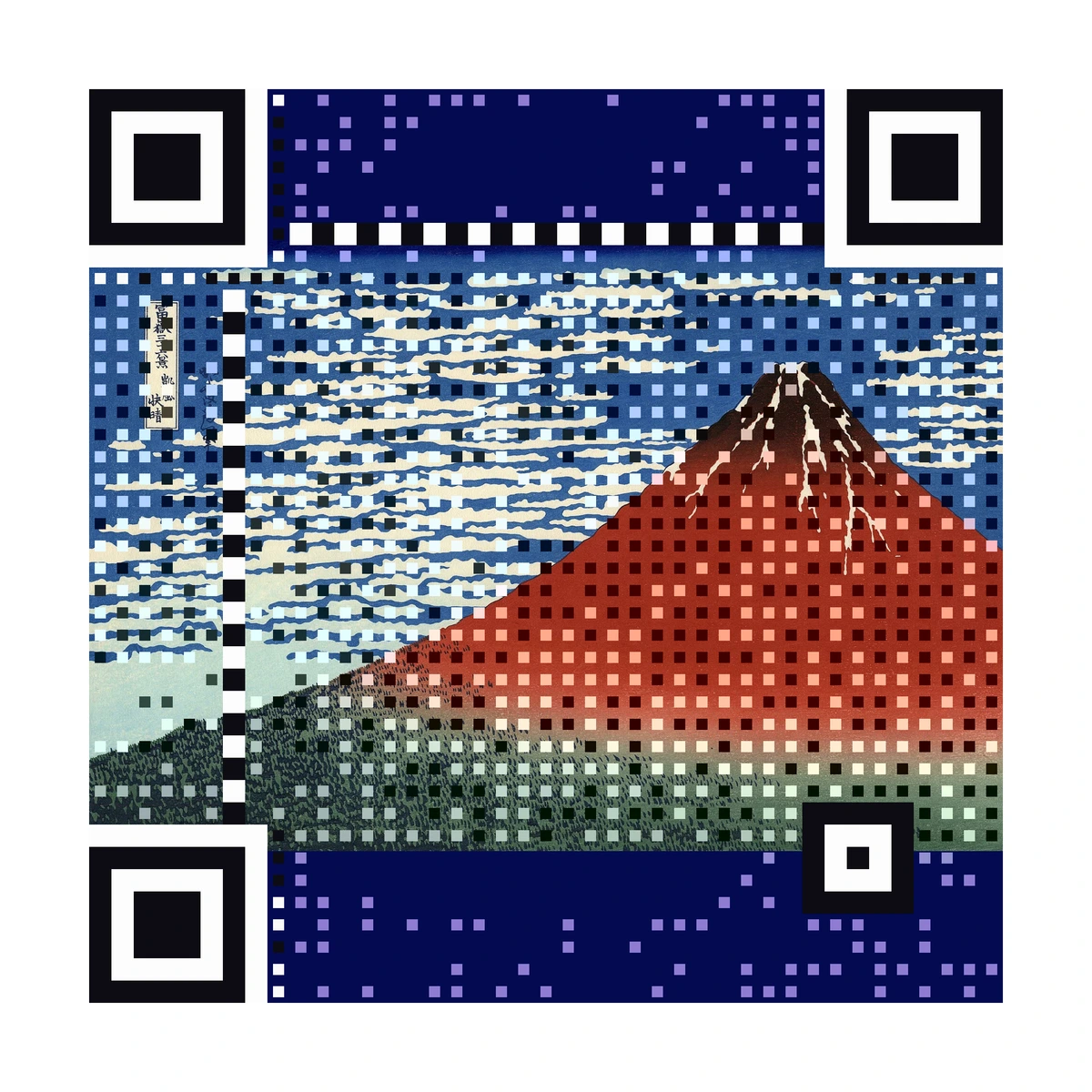
A picture code. A picture QR code is the image, so it is pixels by nature. Wrapping it in an SVG does not make it sharper; the photo inside is still the same grid. Send the PNG at full resolution, or place it in your layout and export a PDF.
What does AriaQR give you to download?
Being exact here saves a call to the print shop.
- Picture codes download as a 2048 px master PNG, with or without a white border. If you used "Code in your image", you also get the full artwork with the code blended in. These are PNG files.
- Free classic codes from the free QR code generator download as PNG or SVG, so you have a vector for print.
- The free converter in our tools turns a classic code image into SVG or PDF.
Here is what a 2048 px master looks like, made from Hokusai's Red Fuji:
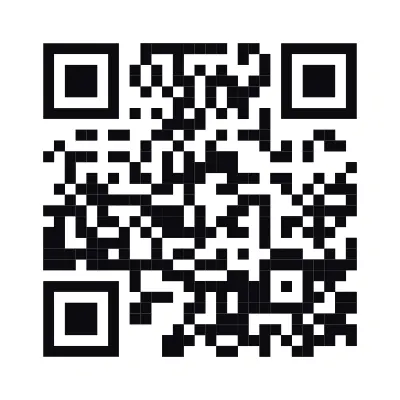
And a classic code, which is pure shapes and ideal as an SVG:
How big can you print a 2048 px PNG?
Divide the pixels by the resolution your printer wants. Close-up print, such as cards, menus and brochures, is usually asked for at 300 pixels per inch. At that setting, 2048 px covers about 6.8 inches, roughly 17 cm, which is more than enough for a table tent, a flyer or a packaging label.
Posters and banners are seen from farther away and are often printed at a lower resolution, so the same file can stretch further. Your printer will tell you what they need for the size and the viewing distance. Our guide to QR codes on billboards and print ads covers sizing for distance.
Whatever the file, print one proof at full size and scan it before approving the run. Every AriaQR code is verified on real decoders under real-world conditions before download, and a proof checks the last step: your paper, ink and finish.
Tips for sending files to a print shop
- Say what the code must do. "This is a QR code, please do not resize or recolor it" saves surprises.
- Keep the border. The white space around the code is part of the code. Do not let the printer crop it.
- Ask for solid black. For a classic code, ask for the dark parts to print as solid black. Check brand colors on a proof, since colors shift between screen and paper.
- Do not let anyone re-save it as JPG. If the layout goes through several hands, say so in the brief.
- Check the final PDF. Open it, zoom in on the code, and scan it from the screen before you approve.
The full list of checks is in our QR code print checklist.
Where to start
Look at the code you have. If it is a classic code, get the SVG and build your print PDF around it. If it is a picture code, place the 2048 px PNG in your layout at its final size, export a PDF, and print one proof to scan.