Can you scan a QR code from a screenshot? Yes. Your phone's camera cannot point at its own screen, but your photo app can read a code straight from a saved image, and so can an online QR code reader on any computer.
It is the answer to a common moment: someone sends you a code in a chat, a code sits in an email on your phone, or an event ticket arrives as an image. Here is how to open it on each device, and how to stay safe while you do.
Can you scan a QR code from a screenshot?
You can, because reading a QR code does not need a live camera. A screenshot is just an image, and the code in it is the same pattern a camera would see.
Most phones now read codes inside photos with no extra app. On iPhone, the Photos app recognizes codes through Live Text. On Android, Google Lens does the same job inside Google Photos, and many phone makers build a similar scan button into their own gallery apps. On a laptop, an online reader takes an uploaded or pasted image.
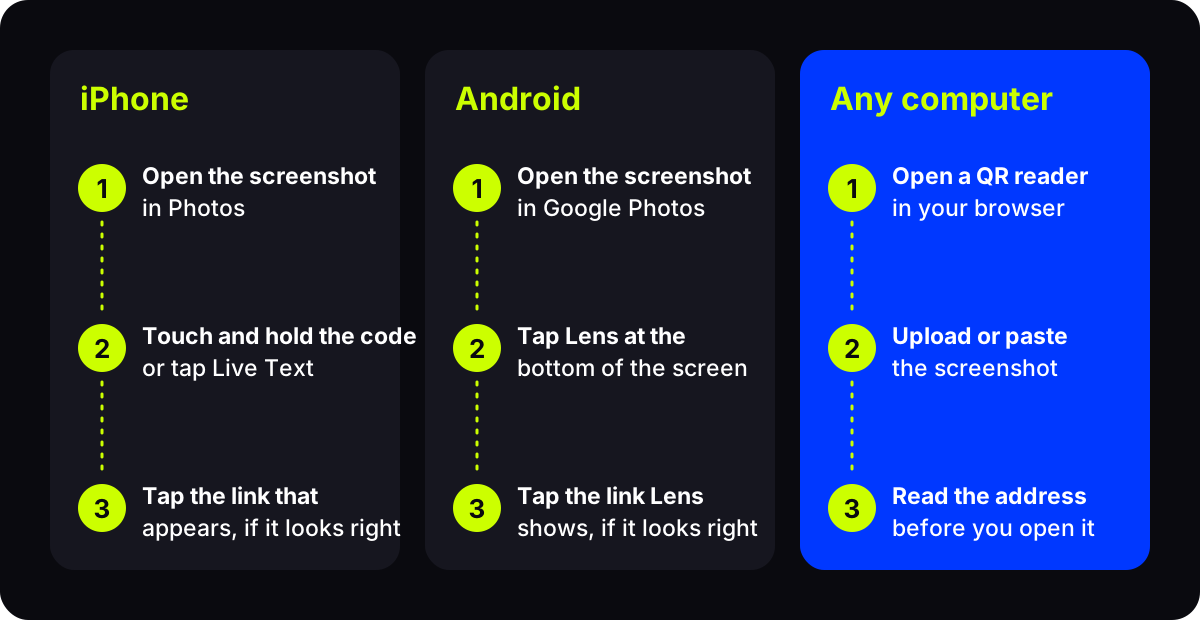
How to scan a QR code from a screenshot on iPhone
- Take the screenshot. Press the side button and volume up together, or use the method your iPhone model supports.
- Open it in Photos. Find the screenshot in your library.
- Touch and hold the code, or tap the Live Text button in the corner of the photo. On recent versions of iOS, a link or a small menu appears.
- Read the address, then tap it if it is what you expect.
If nothing happens, your iPhone may be on an older version of iOS, or the code may be too small in the image. Updating iOS or zooming in before taking the screenshot usually fixes it. The Google app's Lens feature also works on iPhone.
How to scan a QR code from a screenshot on Android
- Take the screenshot. On most phones, press power and volume down together.
- Open it in Google Photos, or in your phone's own gallery app.
- Tap Lens at the bottom of the screen. Some gallery apps show a scan or "visual search" button instead.
- Read the address Lens shows, then tap it if it looks right.
You can also open the Google app or Google Lens directly, tap the image icon, and pick the screenshot from your gallery.
How to scan a QR code from an image on a computer
On a laptop or desktop, use an online reader. The free AriaQR QR code reader takes a screenshot or photo: upload the file or paste the image straight from your clipboard.
It decodes the code and tells you what it contains: a link, Wi-Fi details, a contact card, an email, a phone number or plain text. Every web link is checked against Google Safe Browsing before it is shown as safe, and the full address is shown so you decide whether to open it. The image is processed in memory and discarded, not stored.
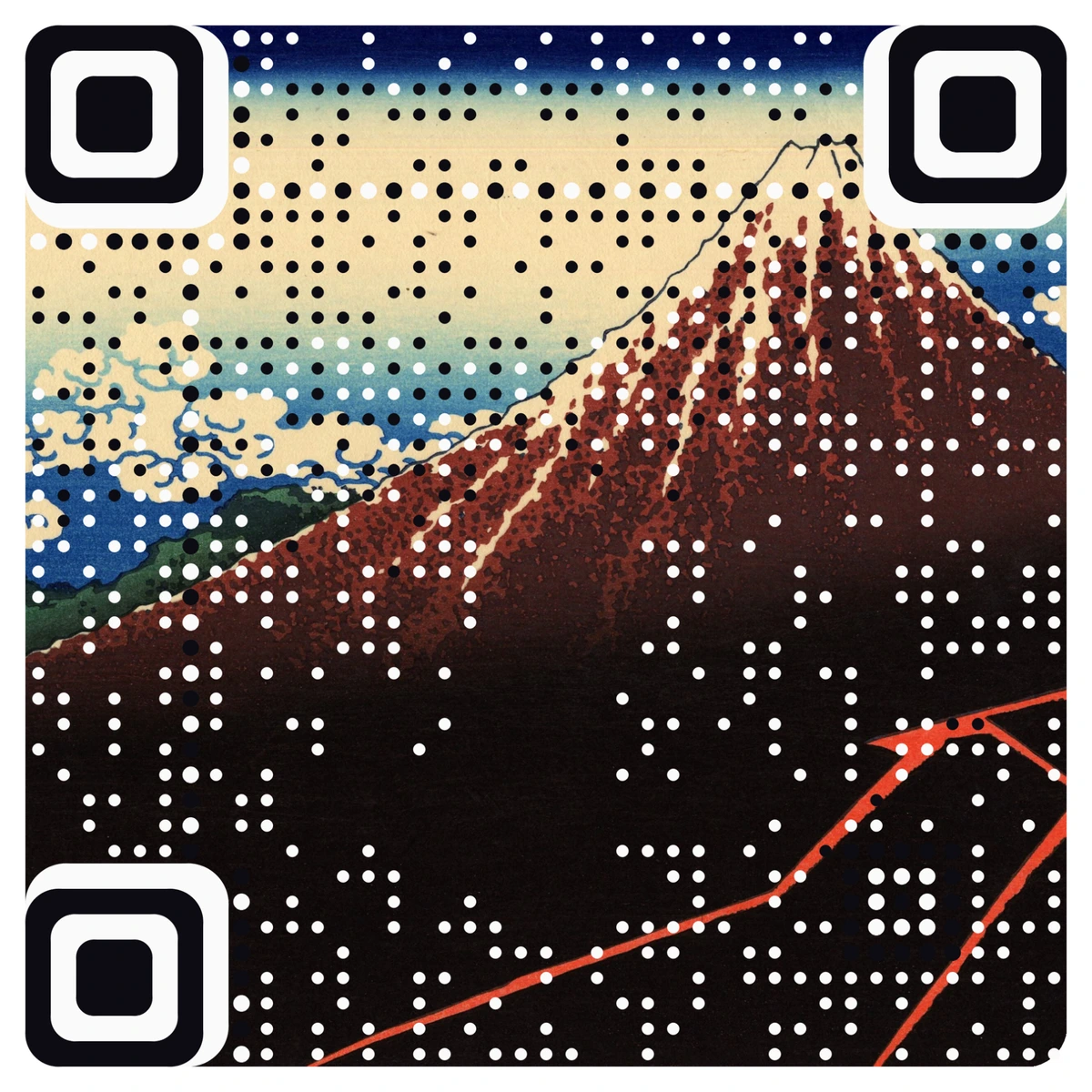
Want to try it now? Take a screenshot of the code below, then open it in your Photos app or the reader.
Is it safe to scan a QR code from a screenshot?
A screenshot is no safer or riskier than a printed code. The risk is the same: you cannot see where a code goes until you read it.
Screenshots do travel in risky places, though. Codes forwarded in chats, pasted into emails or attached to PDFs are a favorite route for phishing, often dressed up as a parcel notice, a payment request or a sign-in prompt. Our guide to QR code phishing in 2026 shows the patterns to watch for.
A few habits keep you safe:
- Read the address before you open it. Check the domain, the part just before the first single slash.
- Be wary of codes that ask you to sign in or pay. Go to the service's site or app yourself instead.
- Ask where a forwarded code came from. If a friend sent it, check they meant to.
For a fuller checklist, see how to check if a QR code is safe.
Why some screenshots won't scan
When a screenshot will not read, the cause is usually one of these:
- The code is too small. A code shown as a thumbnail is only a few pixels wide. Open the image full size, zoom in, then take the screenshot.
- A corner is cut off. The three corner squares must all be in the image. Leave a little space around the code.
- Chat apps compressed it. Images forwarded several times lose detail. Ask for the original.
- Something covers it. A notification banner, a play button or a cursor can sit over part of the code.
- It is blurry. A photo of a screen taken at an angle, or in motion, can lose the pattern. Take it straight on.
Where to start
Next time a code lands on your phone, take a screenshot, open it in Photos or Google Photos, and read the address before you tap. On a computer, drop the image into a reader that checks the link for you. If you make codes for others, keep them large, clear and well spaced, so they read just as well from a screenshot as from print.