Guide 1 · Your first code
Make a picture QR code and change its look
Upload a picture, choose what the code opens, generate it, restyle it with templates, patterns and colours, then activate it and download the print-ready file.
Spoken in English, with subtitles in 49 languages. Recorded on the live product with Harbor & Pine Hotel, a demo account.
Step by step
Step 1
Open the generator
From your dashboard, click “New picture code” to open the generator.
Step 2
Upload a picture
Upload a picture. One clear subject in the middle works best, like this lighthouse.
Step 3
Choose what it opens
Choose what the code should open. There are over 60 types. We’ll keep “Website”.
Step 4
Type the link
Type the link. Here it’s the hotel’s landing page, aqr.li/harborpine.
Step 5
Dynamic links
“Dynamic” is on, so you can change the link after printing, and every scan is counted.
Step 6
Where it will be used
Choose where it will be used. “Screens & posters” gives the cleanest look.
Step 7
Generate and verify
Click “Generate”. Every code is checked on real decoders under real-world conditions before you see it.
Step 8
Your code is ready
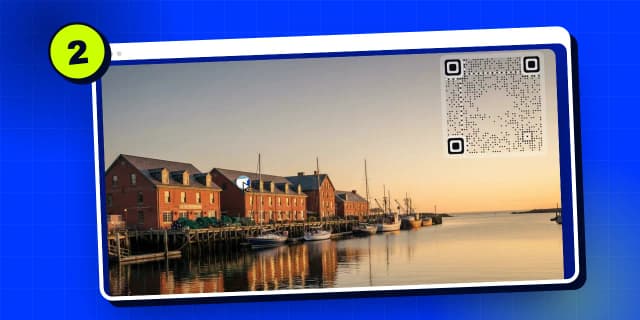
Your code is ready, and verified to scan. Point your phone at the screen to try it.
Step 9
Templates
Now change its look. Templates restyle the whole code in one tap.
Step 10
Markers, eyes and dots
In “Pattern”, change the corner markers, the eyes and the dots.
Step 11
Colours
In “Colors”, pick the ink. Navy suits this picture.
Step 12
Apply the style
Click “Apply”. The new look is checked again, so it still scans.
Step 13
Same code, new look
Same code, new look. The link and the scan history stay exactly the same.
Step 14
Activate it
Happy with it? Activate it with your plan. The code goes live straight away.
Step 15
Find it under Codes
Your code now lives in your dashboard, under “Codes”, with its scans and settings.
Step 16
Download for print
Open the full report to download it. Add a “Scan me” frame if you like, then download the print-ready file.
Search all guides
Language: English
Language
- English
- Español
- Português
- Français
- Deutsch
- Italiano
- Nederlands
- Polski
- Türkçe
- Русский
- Українська
- العربية
- فارسی
- עברית
- اردو
- हिन्दी
- বাংলা
- தமிழ்
- తెలుగు
- मराठी
- ગુજરાતી
- ಕನ್ನಡ
- മലയാളം
- Bahasa Indonesia
- Bahasa Melayu
- Tiếng Việt
- ไทย
- Filipino
- 日本語
- 한국어
- 简体中文
- 繁體中文
- Svenska
- Dansk
- Norsk
- Suomi
- Čeština
- Română
- Magyar
- Ελληνικά
- Slovenčina
- Slovenščina
- Hrvatski
- Srpski
- Български
- Lietuvių
- Latviešu
- Eesti
- Kiswahili